
Overview
Custom Fields allow you to capture and organize information that is specific to your business. Because they are fully customizable, the fields you see in your account may differ from other users.
You can use Custom Fields to track important details such as call outcomes, lead information, service types, or any data point relevant to your workflow.
How to Access Custom Fields
To access Custom Fields:
Log in to your 800.com dashboard
-
Navigate to:
Settings → Custom Fields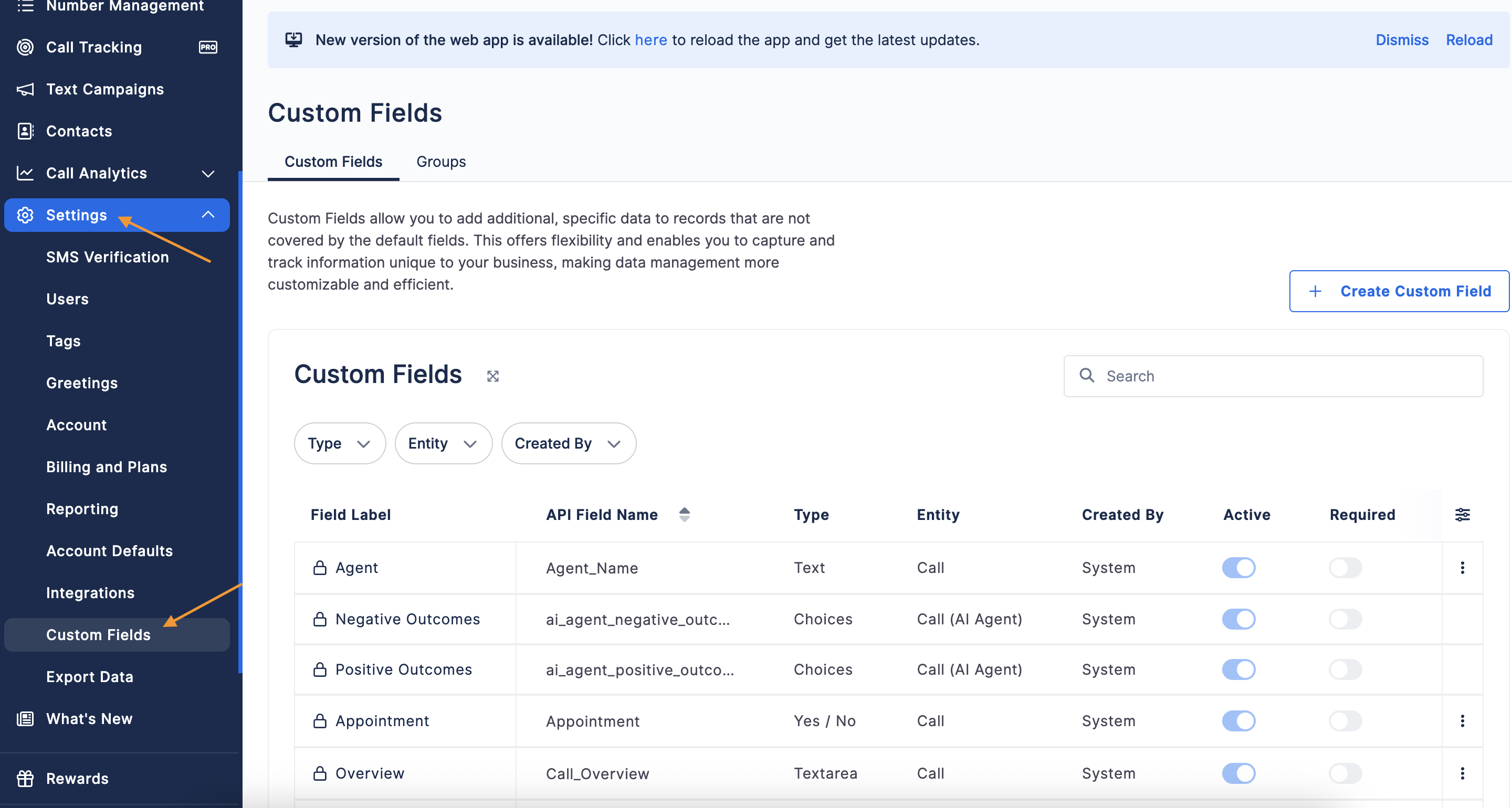
This will take you to the Custom Fields landing page where you can view and manage all fields.
Custom Fields Landing Page Overview
The landing page displays all of your configured custom fields.
Columns Explained
Field Label
The label of the custom field.
Field Name
The name of the custom field.
Field Type
The type of field (for example: dropdown, text, number, boolean).
Entity
Indicates where the field is applied (such as Calls or Contacts).
Created By
Who created the field.
Status
Shows whether the field is active or inactive.
Field Group
The group the field belongs to (if applicable).
Supported Entities
Custom Fields can be applied to the following entities:
Calls – Data related to individual calls
Contacts – Information associated with a caller or lead
The selected entity determines where the field appears in the platform.
Creating a Custom Field
To create a new custom field:
Click Create Field
Enter a Field Name
Select a Field Type
Choose an Entity (Call or Contact)
Assign a Field Group (optional)
Define Field Values (if applicable)
Click Save
Field Types and Values
The Field Type determines how data is captured and displayed.
Common field types include:
Dropdown (Select)
A list of predefined options.
Text
Freeform input for flexible data.
Number
Numeric values only.
Boolean
Yes/No or True/False values.
Adding Multiple Values (Dropdown Fields)
💡 Note: To add multiple options at once, click the Text Area icon, paste your values from a source document, and use the Sort Alphabetically icon to organize them automatically.
Editing or Deleting a Custom Field
To edit or delete a field:
Locate the field on the Custom Fields landing page
Click Edit to update the field
Click Delete to remove it
⚠️ Deleting a field will remove it from your account and may remove associated data.
Custom Field Groups
Custom Field Groups allow you to organize related fields together.
This is especially useful if your business uses multiple workflows or operates across different industries.
How They Work
Groups help organize similar fields into logical categories
They can be created at both the Account and Organization level
Groups appear throughout the platform wherever custom fields are used
Permissions
If your account is not part of an Organization:
Account Admins can create and manage Custom Field GroupsIf your account belongs to an Organization:
Field Groups are managed at the Organization level
⚠️ Note: If a Field Group is controlled by your Organization, access to fields within that group may change if permissions are updated.
Where Custom Fields Appear
Custom Fields appear in various areas of the platform, including:
Call detail views
Contact records
Reporting and analytics
The selected entity determines where each field is displayed.
Examples of Custom Field Use
Here are a few ways you can use Custom Fields:
Call Outcomes
Appointment Booked
Follow-Up Needed
Not a Fit
Lead Information
Budget Range
Timeline
Service Type
Industry-Specific Data
Home Services: Service Requested, Urgency
Healthcare: Appointment Type
Automotive: Vehicle Interest
Best Practices
Use dropdown fields for consistent reporting
Group related fields using Field Groups
Keep field names clear and easy to understand
Regularly review and update fields as your business evolves
Need Help?
If you have questions during this process, you can reach out to our support team via email: support@800.com.