---
title: How to Integrate 800.com With Salesforce
description: This integration lets you automatically upload call data from 800.com to Salesforce as Contacts , Leads , and Activities .
---
[Skip to content](https://support.800.com/en-us/hc/articles/40195758461965-how-to-integrate-800-com-with-salesforce#main-content)
[](https://www.800.com/)
- [Call us (800) 800-4321](tel:+18008004321)
- [Sign in](https://support.800.com/hc/en-us/signin)
Open main navigation
Close main navigation
- [Call us (800) 800-4321](tel:+18008004321)
- [Sign in](https://support.800.com/hc/en-us/signin)
- [Submit a request](mailto:support@800.com)
[Submit a request](mailto:support@800.com)
800.com Help Center
- There are no suggestions because the search field is empty.
1. [800 Support Center](https://support.800.com/en-us/hc?hsLang=en-us)
2. [Call Tracking](https://support.800.com/en-us/hc/call-tracking?hsLang=en-us)
3. [Integrations](https://support.800.com/en-us/hc/call-tracking?hsLang=en-us#integrations)
August 19, 2026
# How to Integrate 800.com With Salesforce
## Send call data to Salesforce as contacts, leads, or activities, and configure how caller records are matched after sign-in.
This integration lets you automatically upload call data from [800.com](http://800.com/) to **Salesforce** as **Contacts**, **Leads**, and **Activities**. A new Contact or Lead is created for each unique caller, or if one already exists, a new Activity is added with a link to the call timeline.
Ensure your Salesforce account has permission to create and manage Contacts, Leads, and Activities. After authentication, you can configure how call data syncs to Salesforce.
## Before Getting Started
Before you begin the integration, you will need to confirm you have:
- An active [800.com](http://800.com/) account with admin access.
- A Salesforce account (Professional, Enterprise, or Developer edition).
- A Salesforce admin permissions to create connected apps and manage API access.
- An understanding of Salesforce objects (Leads, Contacts and Activities).
## Enabling Salesforce
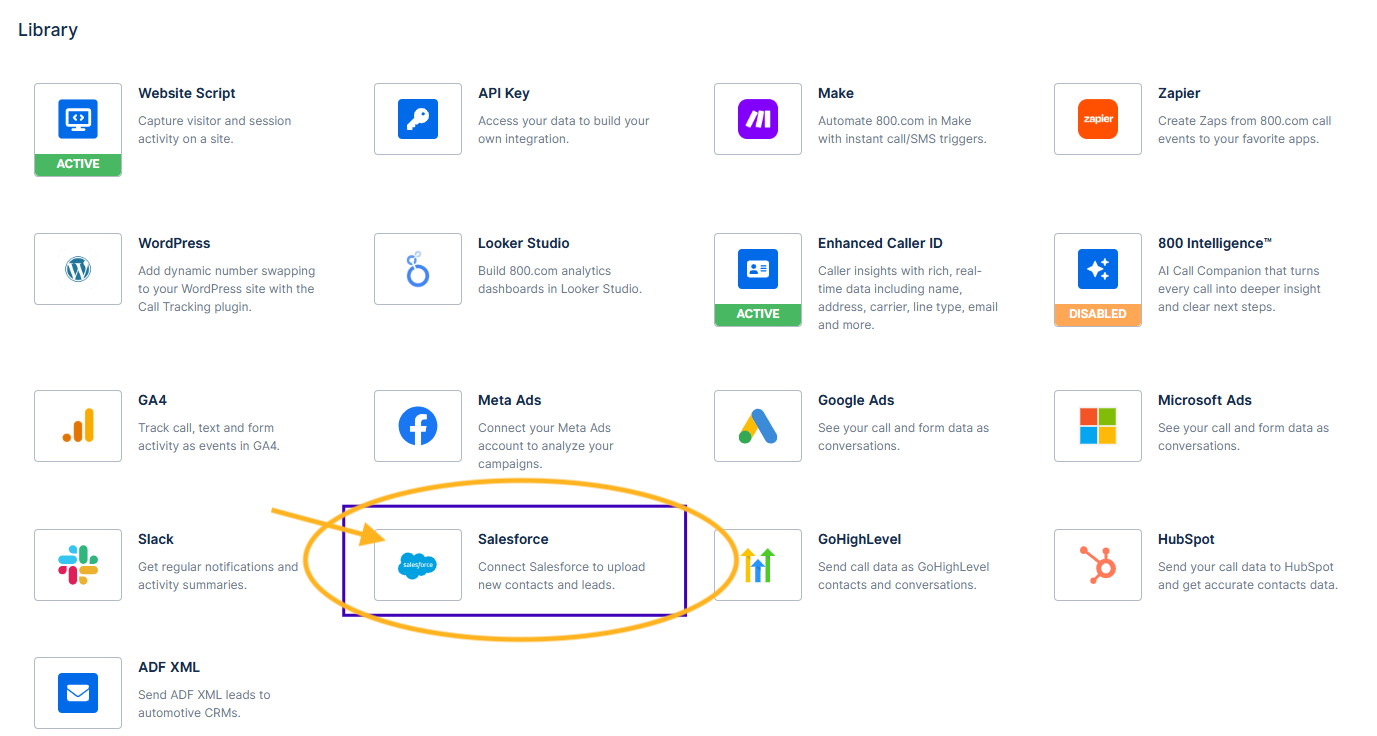
In the app, select **Settings** \> **Integrations**. You will be taken to the **Integrations Library**.
- For Organizations, go to **Organization** \> **Global Settings** \> **Integrations**.
Click the **Salesforce** icon.
Review the overview page. Click **Sign In with Salesforce** to begin the **OAuth process**.
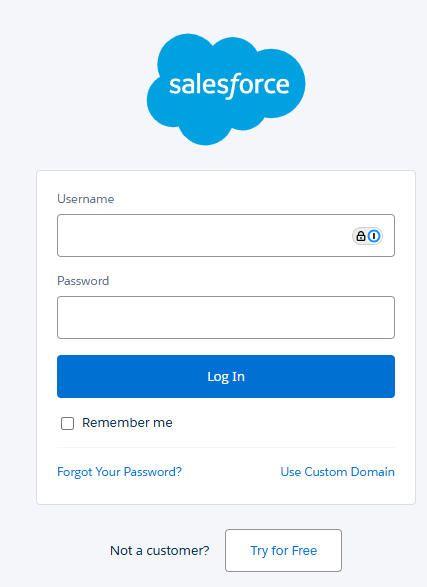
Enter your Salesforce credentials and click **Log In**.
- **Username**: Your Salesforce username (usually an email address).
- **Password**: Your Salesforce password.
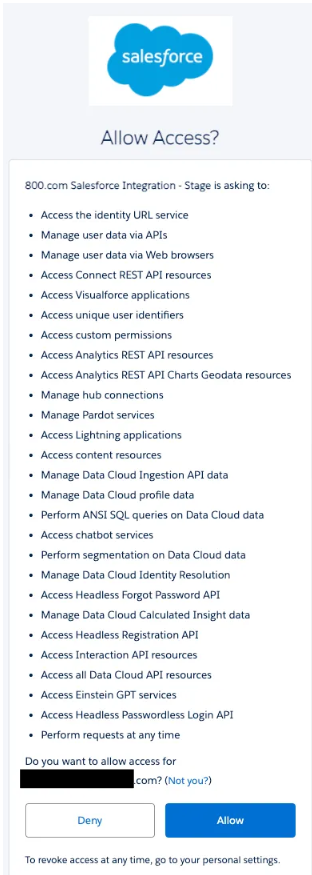
Salesforce will display a comprehensive permission request screen prompting you to allow access.
Review the extensive list of requested permissions \> click **Allow** to grant the necessary permissions for the integration. Otherwise, click **Deny** to not proceed.
Once connected, you will be taken to the **Integrations Setup** page.
## Integration Setup
#### Sync Configuration
In the **Sync Configuration** section:
- Select the **Contact** or **Lead** radio button if you want it to create a new Contact or new Lead for each call if the contact or lead does not already exist.
- Select **Activity** under **Select Call Information as** to log calls as Salesforce activities.
- Select the desired **Sync Timing**, whether you want the call data to be uploaded to Salesforce at the **End of Call** or **Start of Call**. The End of Call is recommended as it will include the call duration, and other post-call data.
#### Call Filtering
In the **Call Filtering Options** section:
- If you want all calls to be uploaded, set the **Call Duration Threshold (seconds)** field to **0**; otherwise, enter the desired duration threshold in seconds to only upload calls that were longer than the entered threshold.
- You can limit the upload of calls to specific receiving numbers, if desired, by entering the phone numbers in the **Restrict by Receiving Number** field.
#### Data Upload Options
In the **Data Upload Options** section:
- Select **Upload Enhanced Caller ID** Information if you want to send enhanced caller ID information to Salesforce. Note: You must have Enhanced Caller ID enabled.
- Select **Upload UTM Parameters** if you want UTM parameters to be uploaded.
- Select **Upload Contact Information**, if you want contact information to be uploaded.
#### Additional Options
In the **Additional Options** section:
- Select **Only create a Lead if no matching Contact found** to prevent duplicate records.
- Select **Only upload calls with known caller IDs** to filter out anonymous calls.
- Select **Call Recordings in Activities to attach call recordings** to Salesforce activities.
Once you have set your configuration, click the **Activate Integration** button.
- This will save your configuration settings and start uploading call data to Salesforce, based on your configuration.
Once activated, a summary page of your settings will display.
## Verifying Data Synchronization
After activation, [800.com](http://800.com) will begin synchronizing call data to Salesforce. New contacts will be created based on your configuration:
### Contact Creation
If configured to create Contacts, you should see new contact records with contact information.
- Go to your Salesforce account and go to your **Contacts** to verify that [800.com](http://800.com) contacts have been synchronized.
- You should see contacts with:
- **Name**: Contact’s full name from call data
- **Phone**: Primary phone number from the call
- **Email**: Email address if available
- **Company**: Company name if identified
- **Lead Source**: Set to “[800.com](http://800.com)” or custom value
- **Created Date**: When the contact was first created
- **Last Activity**: Most recent call interaction
- **Custom Fields**: Any mapped custom fields from [800.com](http://800.com)
### Lead Creation
If configured to create Leads, you should see new lead records with call information:
- Go to your Salesforce account and go to your **Leads** to verify that leads have been created.
- You should see leads with:
- **Name**: Lead’s full name
- **Phone**: Contact phone number
- **Email**: Email address if available
- **Company**: Company name
- **Lead Source**: “[800.com](http://800.com)”
- **Status**: “New” or configured default status
- **Lead Score**: Based on call frequency/duration if configured
- **Created Date**: When the lead was first created
- **Conversion Status**: Unqualified/Qualified based on call outcomes
### Activity Logging
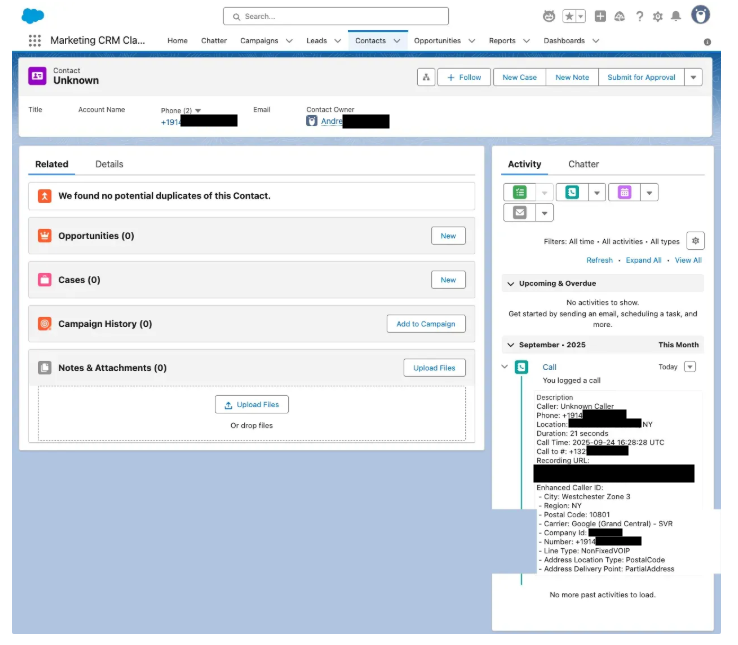
If configured to sync call information to activities, you should see new activities with call information.
- Go to your Salesforce account and go to your Contacts or Leads and select **Activities** to verify that activities have been created.
- You should see activities with:
- **Subject**: “Call with \[Contact Name\]” or “Inbound/Outbound Call”
- **Type**: “Call”
- **Status**: “Completed”
- **Priority**: “Normal” or based on call outcome
- **Due Date**: Call date and time
- **Duration**: Call length in minutes and seconds
- **Description**: Detailed call information including:
- **Caller ID**: Phone number and name
- **Call Direction**: Inbound or Outbound
- **Call Duration**: Exact time length
- **Call Outcome**: Result or disposition
- **Recording URL**: Link to call recording (if enabled)
- **Enhanced Caller ID**: Company, location, carrier information
- **UTM Parameters**: Marketing attribution data
- **Custom Fields**: Additional [800.com](http://800.com) data
- **Related To**: Linked Contact, Lead, or Account
- **Assigned To**: Sales rep or default user
## Checking the Salesforce Integration Status
In the app, select **Settings** \> **Integrations**.
- For Organizations, go to **Organization** \> **Global Settings** \> **Integrations**.
Locate the **Salesforce Integration** icon in the Integrations Library. You will see one of the following statuses:
- **No banner** – Integration is not enabled.
- **Active** – Integration is currently active.
- **Failed** – There is an issue with the connection. Check your Salesforce access.
## Deleting the Salesforce Integration
In the app, select **Settings** \> **Integrations.** Click the **Manage** tab.
- For Organizations, go to **Organization** \> **Global Settings** \> **Integrations**.
Locate the Salesforce Integration, click the **vertical ellipsis** \> select **Delete** or click on the **Salesforce** integration icon to access the configuration page \> click **Deactivate Integration**.
Confirm removal by selecting **Delete** again.
## Need help?
Our support team is available to assist with setup, integrations, or troubleshooting. Reach out to us at **support@800.com**.
- [General & FAQs](https://support.800.com/en-us/hc/general-faqs?hsLang=en-us#main-content)
- [FAQs](https://support.800.com/en-us/hc/general-faqs?hsLang=en-us#faqs)
- [Getting Started](https://support.800.com/en-us/hc/getting-started?hsLang=en-us#main-content)
- [Onboarding Basics](https://support.800.com/en-us/hc/getting-started?hsLang=en-us#onboarding-basics)
- [Dashboard & App](https://support.800.com/en-us/hc/dashboard-app?hsLang=en-us#main-content)
- [Inbox](https://support.800.com/en-us/hc/dashboard-app?hsLang=en-us#inbox)
- [Call Analytics](https://support.800.com/en-us/hc/dashboard-app?hsLang=en-us#call-analytics)
- [Alerts & Monitoring](https://support.800.com/en-us/hc/dashboard-app?hsLang=en-us#alerts-monitoring)
- [Enhanced Caller ID](https://support.800.com/en-us/hc/dashboard-app?hsLang=en-us#enhanced-caller-id)
- [In-App Calling](https://support.800.com/en-us/hc/dashboard-app?hsLang=en-us#in-app-calling)
- [Rewards](https://support.800.com/en-us/hc/dashboard-app?hsLang=en-us#rewards)
- [Number Management](https://support.800.com/en-us/hc/number-management?hsLang=en-us#main-content)
- [Number Management](https://support.800.com/en-us/hc/number-management?hsLang=en-us#number-management)
- [Call blocking](https://support.800.com/en-us/hc/number-management?hsLang=en-us#call-blocking)
- [Number Transfers/Ports](https://support.800.com/en-us/hc/number-management?hsLang=en-us#number-transfers-ports)
- [Marketing](https://support.800.com/en-us/hc/number-management?hsLang=en-us#marketing)
- [800 Intelligence](https://support.800.com/en-us/hc/800-intelligence?hsLang=en-us#main-content)
- [800 Intelligence Guides](https://support.800.com/en-us/hc/800-intelligence?hsLang=en-us#800-intelligence-guides)
- [Call Forwarding](https://support.800.com/en-us/hc/call-forwarding?hsLang=en-us#main-content)
- [Call Routing](https://support.800.com/en-us/hc/call-forwarding?hsLang=en-us#call-routing)
- [Call Tracking](https://support.800.com/en-us/hc/call-tracking?hsLang=en-us#main-content)
- [Dynamic Number Insertion (DNI)](https://support.800.com/en-us/hc/call-tracking?hsLang=en-us#dynamic-number-insertion-dni)
- [Integrations](https://support.800.com/en-us/hc/call-tracking?hsLang=en-us#integrations)
- [Getting Started](https://support.800.com/en-us/hc/call-tracking?hsLang=en-us#getting-started)
- [General](https://support.800.com/en-us/hc/call-tracking?hsLang=en-us#general)
- [Text Messaging](https://support.800.com/en-us/hc/text-messaging?hsLang=en-us#main-content)
- [Texting/SMS Messaging](https://support.800.com/en-us/hc/text-messaging?hsLang=en-us#texting-sms-messaging)
- [Account & Billing](https://support.800.com/en-us/hc/account-billing?hsLang=en-us#main-content)
- [Trial Period](https://support.800.com/en-us/hc/account-billing?hsLang=en-us#trial-period)
- [Plans & Billing](https://support.800.com/en-us/hc/account-billing?hsLang=en-us#plans-billing)
- [Security](https://support.800.com/en-us/hc/account-billing?hsLang=en-us#security)
- [Companies](https://support.800.com/en-us/hc/account-billing?hsLang=en-us#companies)
- [Users](https://support.800.com/en-us/hc/account-billing?hsLang=en-us#users)
- [Marketing Tools](https://support.800.com/en-us/hc/marketing-tools?hsLang=en-us#main-content)
- [Marketing Ideas](https://support.800.com/en-us/hc/marketing-tools?hsLang=en-us#marketing-ideas)
- [API](https://support.800.com/en-us/hc/api?hsLang=en-us#main-content)
- [API Docs](https://support.800.com/en-us/hc/api?hsLang=en-us#api-docs)
- [800 AI Agents](https://support.800.com/en-us/hc/800-ai-agents?hsLang=en-us#main-content)
- [800 AI Agents](https://support.800.com/en-us/hc/800-ai-agents?hsLang=en-us#800-ai-agents)
- [Integrations](https://support.800.com/en-us/hc/800-ai-agents?hsLang=en-us#integrations)
- [Knowledge Base](https://support.800.com/en-us/hc/800-ai-agents?hsLang=en-us#knowledge-base)
- [800 AI Agent Configuration](https://support.800.com/en-us/hc/800-ai-agents?hsLang=en-us#800-ai-agent-configuration)
[Contact our support team](https://support.800.com/en-us/hc/articles/34511169155341-how-to-contact-support?hsLang=en-us)
Copyright © 2026, 800.com