---
title: How To Set Up Extensions
description: "Step 1: Log In To Your 800.com Account Log in to your account."
---
[Skip to content](https://support.800.com/en-us/hc/articles/31966414412301-how-to-set-up-extensions#main-content)
[](https://www.800.com/)
- [Call us (800) 800-4321](tel:+18008004321)
- [Sign in](https://support.800.com/hc/en-us/signin)
Open main navigation
Close main navigation
- [Call us (800) 800-4321](tel:+18008004321)
- [Sign in](https://support.800.com/hc/en-us/signin)
- [Submit a request](mailto:support@800.com)
[Submit a request](mailto:support@800.com)
800.com Help Center
- There are no suggestions because the search field is empty.
1. [800 Support Center](https://support.800.com/en-us/hc?hsLang=en-us)
2. [Getting Started](https://support.800.com/en-us/hc/getting-started?hsLang=en-us)
3. [Onboarding Basics](https://support.800.com/en-us/hc/getting-started?hsLang=en-us#onboarding-basics)
August 5, 2026
# How To Set Up Extensions
## Create extensions that send callers to the right team, number, voicemail, or in-app user with the right routing settings.
## Step 1: Log In To Your 800.com Account
Log in to your account. Ensure you have administrative access, as only admins can generate and manage Extensions.
- If you’re not already using 800.com, sign up for an account and then log in.
## Step 2: Set Up Extensions
To set up your Extensions:
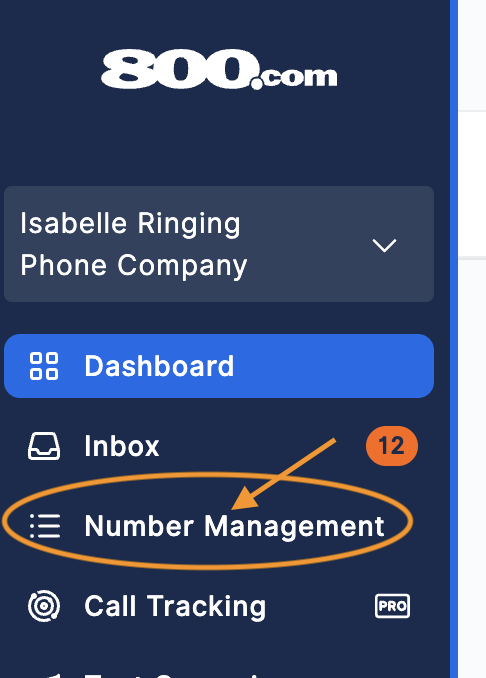
1. Go to **Number Management** \> select the number you want to enable notifications
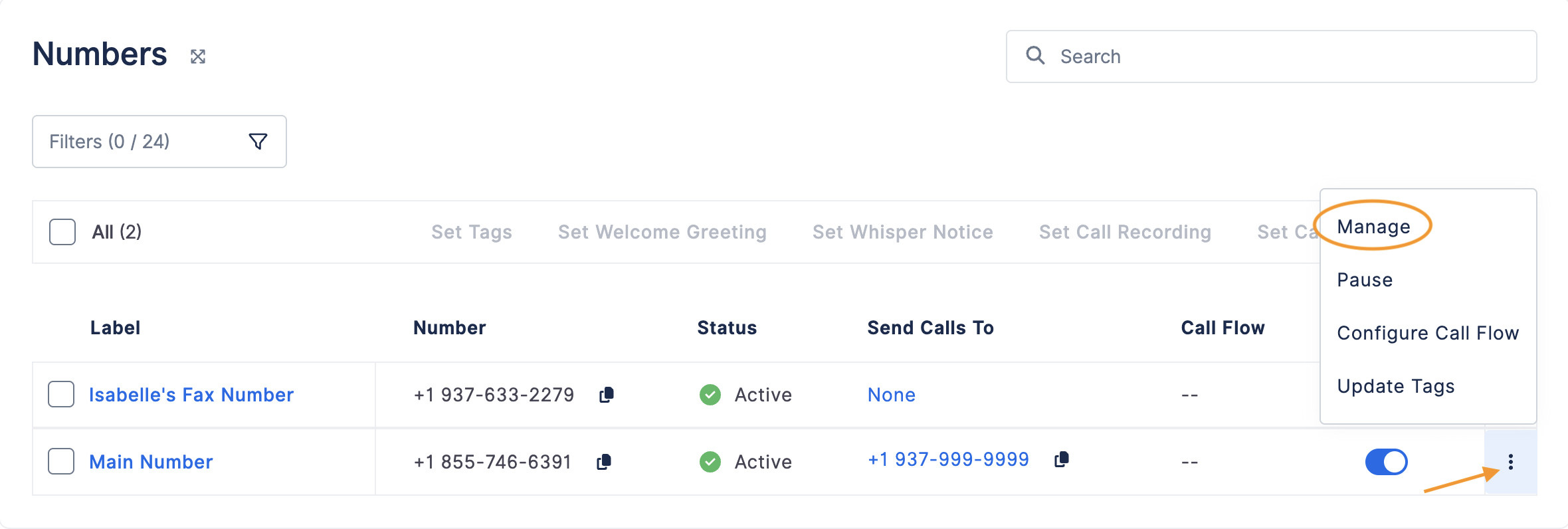
2. Click the 3 dots on the right side \> hit **Manage.**
3. Scroll down to the **Extensions** section \> toggle to **On.**

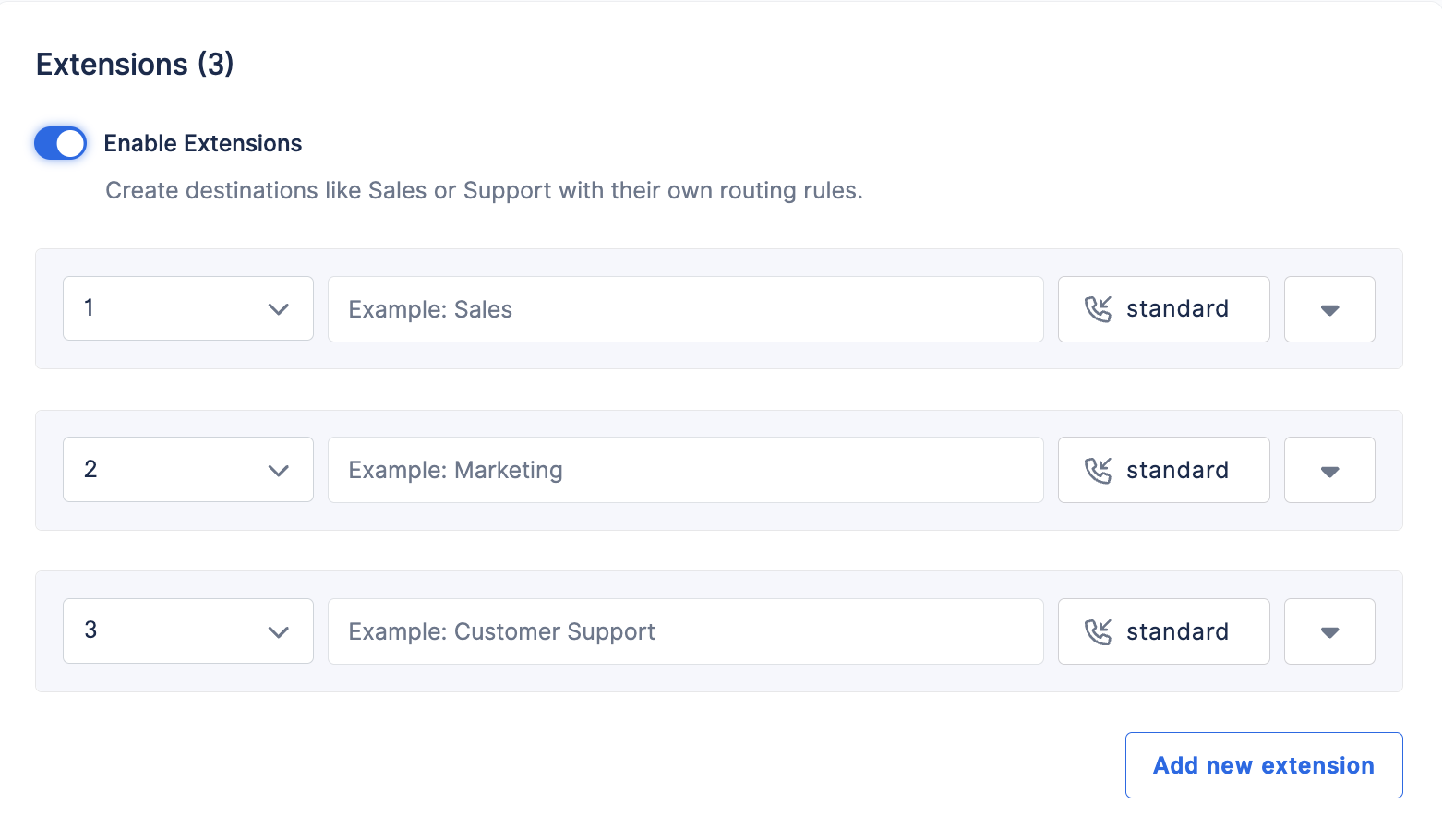
1. You can manage existing extensions or your can click **Add New Extensions** to create a new extension \> If you clicked the **Add New Extensions** button, fill in the new Extensions information.
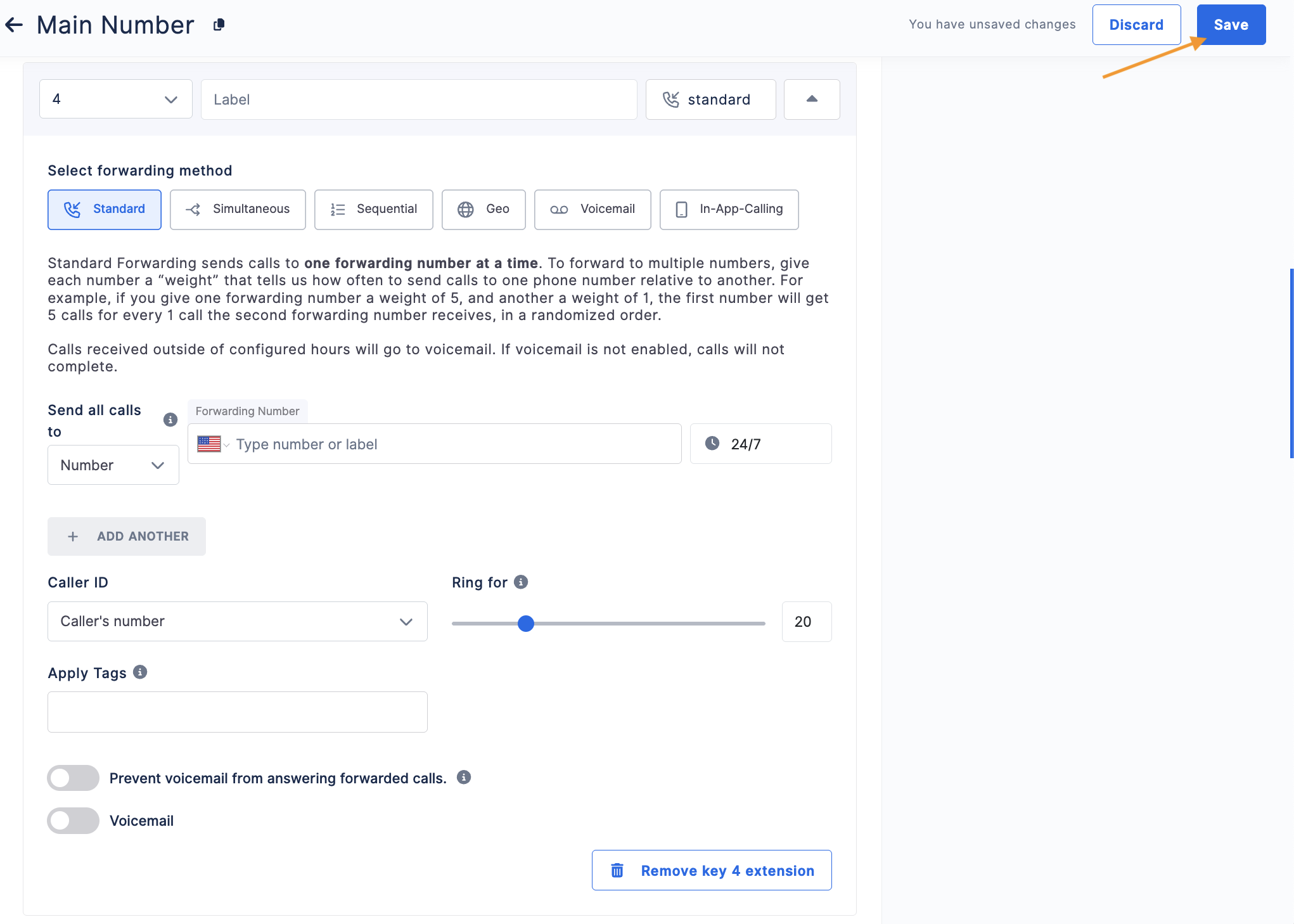
2. Hit **Save** at the top of the page to save any changes.
### Extension Details
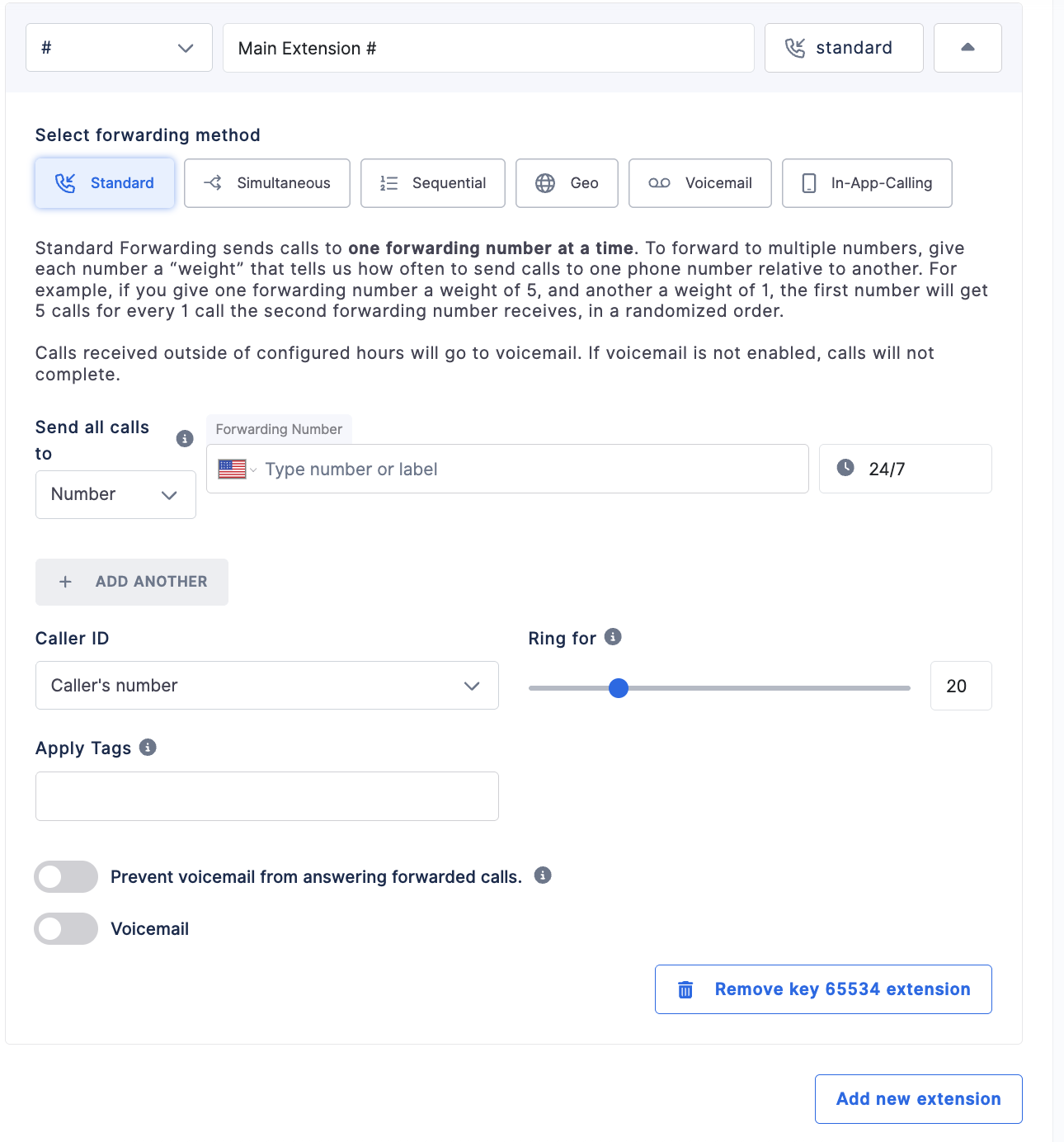
Each extension allows you to control how incoming calls are routed and how callers reach a specific destination in your call flow.
Start by selecting a **Key from the dropdown menu** to assign which **Key callers will press on their keypad** to reach that extension (for example, pressing **4** for Sales or **5** for Support). Each key corresponds to a menu option in your phone system.
After selecting the key, enter a **Label** to name the extension (such as *Main Extension*, *Sales*, or *Support*).
Next, choose a **Forwarding Method** under **Select Forwarding Method**. Available options include **Standard**, **Simultaneous**, **Sequential**, **Geo**, **Voicemail**, and **In-App Calling**, each determining how incoming calls will be routed.
Once the forwarding method is selected, enter the **Forwarding Number or Label**, adjust the **Ring Duration**, and configure additional settings such as **Caller ID**, **Tags**, or **Voicemail** preferences if needed.
When you are finished configuring the extension, click **Save** in the upper-right corner to apply the changes.
## Forwarding Methods Explained
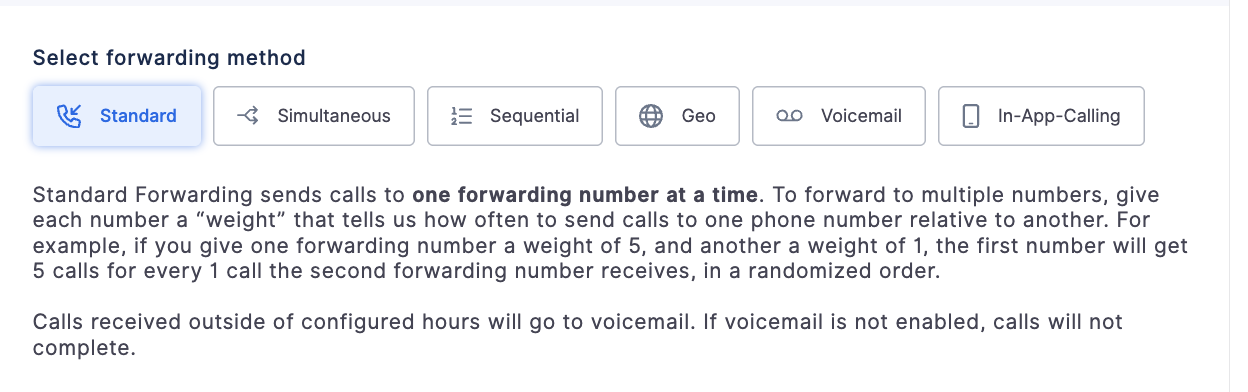
800.com provides several forwarding methods that determine how incoming calls are routed for each extension.
- **Standard Forwarding**
Routes calls to **one forwarding number at a time**. If you add multiple numbers, you can assign a **weight** to control how often calls are sent to each number relative to the others.
- **Simultaneous Forwarding**
Rings **multiple forwarding numbers at the same time**. The first person to answer receives the call, which is useful when multiple team members can handle incoming calls.
- **Sequential Forwarding**
Routes calls through a **list of forwarding numbers in order**. If the first number does not answer, the call is forwarded to the next number in the sequence until someone answers.
- **Geo Forwarding**
Routes calls based on the **caller’s area code or location**. Calls from specific regions can be sent to different numbers, allowing you to direct callers to the most appropriate team or location.
- **Voicemail**
Sends calls **directly to voicemail** when selected. This option is commonly used for after-hours routing or when calls should not be forwarded to another number.
- **In-App Calling**
Routes calls directly to the **800.com web or mobile app**, allowing users to answer calls without forwarding to an external phone number.
## Step 3: Send A Test
Once Extensions are set up, it is important to send a test to confirm that enabling the Extensions were successful.
## Deleting Extensions
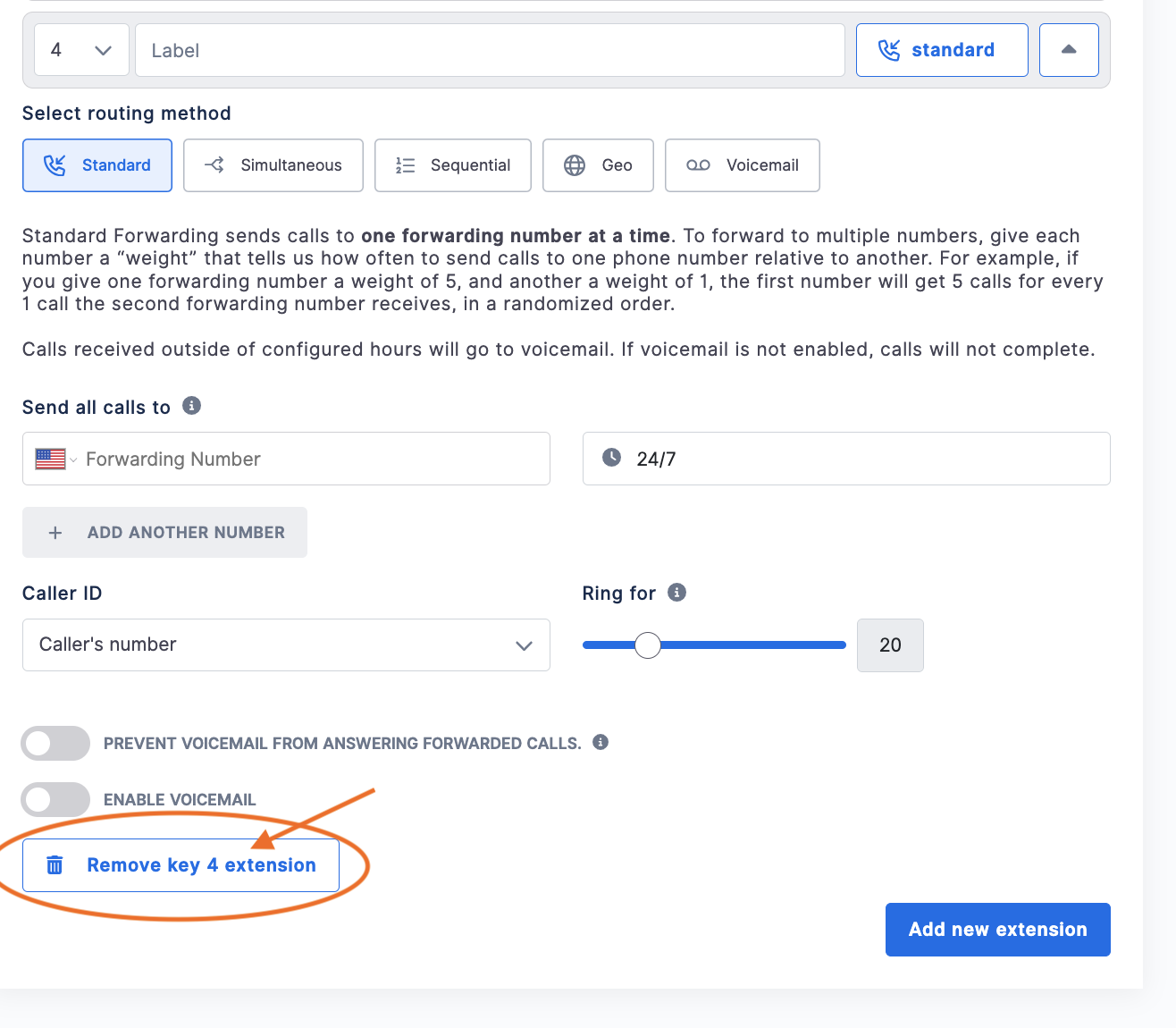
1. If an extension needs to be removed, follow the above steps and then select the extension you wish to delete \> click the **Remove** button
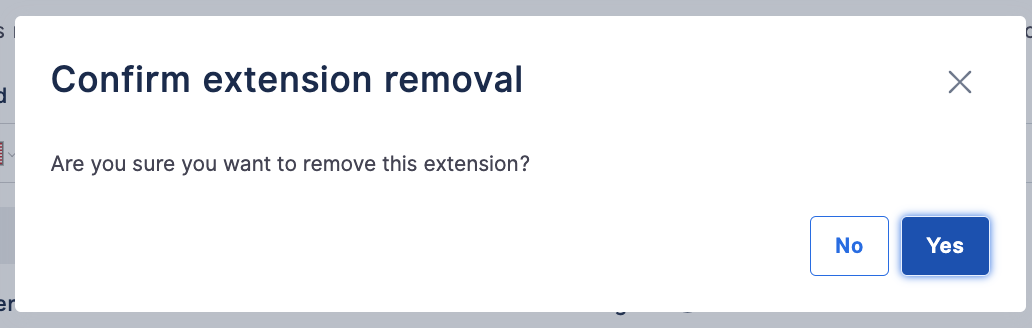
2. Confirm removal
## Need Help?
If you have questions during this process, you can reach out to our support team via email: support@800.com.
- [General & FAQs](https://support.800.com/en-us/hc/general-faqs?hsLang=en-us#main-content)
- [FAQs](https://support.800.com/en-us/hc/general-faqs?hsLang=en-us#faqs)
- [Getting Started](https://support.800.com/en-us/hc/getting-started?hsLang=en-us#main-content)
- [Onboarding Basics](https://support.800.com/en-us/hc/getting-started?hsLang=en-us#onboarding-basics)
- [Dashboard & App](https://support.800.com/en-us/hc/dashboard-app?hsLang=en-us#main-content)
- [Inbox](https://support.800.com/en-us/hc/dashboard-app?hsLang=en-us#inbox)
- [Call Analytics](https://support.800.com/en-us/hc/dashboard-app?hsLang=en-us#call-analytics)
- [Alerts & Monitoring](https://support.800.com/en-us/hc/dashboard-app?hsLang=en-us#alerts-monitoring)
- [Enhanced Caller ID](https://support.800.com/en-us/hc/dashboard-app?hsLang=en-us#enhanced-caller-id)
- [In-App Calling](https://support.800.com/en-us/hc/dashboard-app?hsLang=en-us#in-app-calling)
- [Rewards](https://support.800.com/en-us/hc/dashboard-app?hsLang=en-us#rewards)
- [Number Management](https://support.800.com/en-us/hc/number-management?hsLang=en-us#main-content)
- [Number Management](https://support.800.com/en-us/hc/number-management?hsLang=en-us#number-management)
- [Call blocking](https://support.800.com/en-us/hc/number-management?hsLang=en-us#call-blocking)
- [Number Transfers/Ports](https://support.800.com/en-us/hc/number-management?hsLang=en-us#number-transfers-ports)
- [Marketing](https://support.800.com/en-us/hc/number-management?hsLang=en-us#marketing)
- [800 Intelligence](https://support.800.com/en-us/hc/800-intelligence?hsLang=en-us#main-content)
- [800 Intelligence Guides](https://support.800.com/en-us/hc/800-intelligence?hsLang=en-us#800-intelligence-guides)
- [Call Forwarding](https://support.800.com/en-us/hc/call-forwarding?hsLang=en-us#main-content)
- [Call Routing](https://support.800.com/en-us/hc/call-forwarding?hsLang=en-us#call-routing)
- [Call Tracking](https://support.800.com/en-us/hc/call-tracking?hsLang=en-us#main-content)
- [Dynamic Number Insertion (DNI)](https://support.800.com/en-us/hc/call-tracking?hsLang=en-us#dynamic-number-insertion-dni)
- [Integrations](https://support.800.com/en-us/hc/call-tracking?hsLang=en-us#integrations)
- [Getting Started](https://support.800.com/en-us/hc/call-tracking?hsLang=en-us#getting-started)
- [General](https://support.800.com/en-us/hc/call-tracking?hsLang=en-us#general)
- [Text Messaging](https://support.800.com/en-us/hc/text-messaging?hsLang=en-us#main-content)
- [Texting/SMS Messaging](https://support.800.com/en-us/hc/text-messaging?hsLang=en-us#texting-sms-messaging)
- [Account & Billing](https://support.800.com/en-us/hc/account-billing?hsLang=en-us#main-content)
- [Trial Period](https://support.800.com/en-us/hc/account-billing?hsLang=en-us#trial-period)
- [Plans & Billing](https://support.800.com/en-us/hc/account-billing?hsLang=en-us#plans-billing)
- [Security](https://support.800.com/en-us/hc/account-billing?hsLang=en-us#security)
- [Companies](https://support.800.com/en-us/hc/account-billing?hsLang=en-us#companies)
- [Users](https://support.800.com/en-us/hc/account-billing?hsLang=en-us#users)
- [Marketing Tools](https://support.800.com/en-us/hc/marketing-tools?hsLang=en-us#main-content)
- [Marketing Ideas](https://support.800.com/en-us/hc/marketing-tools?hsLang=en-us#marketing-ideas)
- [API](https://support.800.com/en-us/hc/api?hsLang=en-us#main-content)
- [API Docs](https://support.800.com/en-us/hc/api?hsLang=en-us#api-docs)
- [800 AI Agents](https://support.800.com/en-us/hc/800-ai-agents?hsLang=en-us#main-content)
- [800 AI Agents](https://support.800.com/en-us/hc/800-ai-agents?hsLang=en-us#800-ai-agents)
- [Integrations](https://support.800.com/en-us/hc/800-ai-agents?hsLang=en-us#integrations)
- [Knowledge Base](https://support.800.com/en-us/hc/800-ai-agents?hsLang=en-us#knowledge-base)
- [800 AI Agent Configuration](https://support.800.com/en-us/hc/800-ai-agents?hsLang=en-us#800-ai-agent-configuration)
[Contact our support team](https://support.800.com/en-us/hc/articles/34511169155341-how-to-contact-support?hsLang=en-us)
Copyright © 2026, 800.com