
Overview
800.com allows you to export Call Analytics data so you can analyze performance, share reports with your team, or import call data into external systems such as spreadsheets, CRM platforms, or reporting tools.
Exporting your call data provides access to detailed metrics including call volume, caller activity, duration, answer status, and attribution data.
How to Export Call Analytics Data
Follow these steps to export your Call Analytics report:
Log in to your 800.com account
From the left navigation menu, click Call Analytics
-
Select the report you want to export, such as:
By Number
By Source
By Tracking Pool
By Day & Time
By Unique Callers
-
Use the filters at the top of the page to adjust your report, including:
Date range
Tracking number
Tracking pool
Caller type
Call duration
Answer status
-
Click the Export button in the upper-right corner of the dashboard.
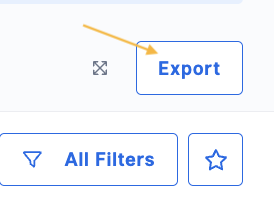
After clicking Export, you will see a notification confirming that your report is being generated.
-
Once the export is ready, the report will be sent to your account email address.

Example notification:
"You'll receive this report by email as soon as it is ready."
Where is My Exported Report?
After you click Export, your report is generated in the background and sent to your account email address.
What to expect
You will see a confirmation notification in the app indicating that the export is in progress.
Once ready, the report will be delivered to the email address associated with your 800.com account.
Delivery time may vary depending on the size of the report and date range selected.
If you don’t see your report
Check the following:
1. Check your email inbox
Look for an email from 800.com with your exported report attached or available for download.
2. Check your spam or junk folder
Sometimes export emails may be filtered incorrectly.
3. Confirm your account email address
You can verify your email by going to:
Settings → Account
4. Wait a few minutes for larger reports
Reports covering longer date ranges or high call volumes may take longer to generate.
Export Tips
Apply filters before exporting to reduce file size and get more relevant data
Use shorter date ranges for faster export delivery
Exported reports include the same data visible in your Call Analytics dashboard
What Data is Included in the Export
Exported reports may include:
Tracking Number
Total Calls
Answered Calls
Missed Calls
Voicemails
First-time Callers
Unique Callers
Call Duration
Call Date and Time
Call Status
Depending on your configuration and integrations, export data may also include attribution and campaign-related information.
Common Use Cases for Exporting Data
Exporting Call Analytics data is useful for:
Marketing performance analysis
Campaign reporting
Conversion tracking and attribution analysis
CRM imports
Internal reporting and forecasting
Identifying missed call opportunities
Best Practices
For accurate reporting:
Apply filters before exporting to export only relevant data
Export reports regularly to track trends over time
Use exported data to compare campaign performance and optimize marketing efforts