
The Calls by Lead report in Call Analytics helps you understand how your calls are categorized so you can track lead performance, measure quality, and identify opportunities to improve conversion.
This report provides a high-level view of calls marked as Leads, Qualified Leads, and Other, along with key metrics and filtering options to help you analyze how calls are being classified and handled.
How to Access the Calls by Lead Report
- Log in to your 800.com dashboard
-
From the left-hand menu, click Call Analytics > By Lead
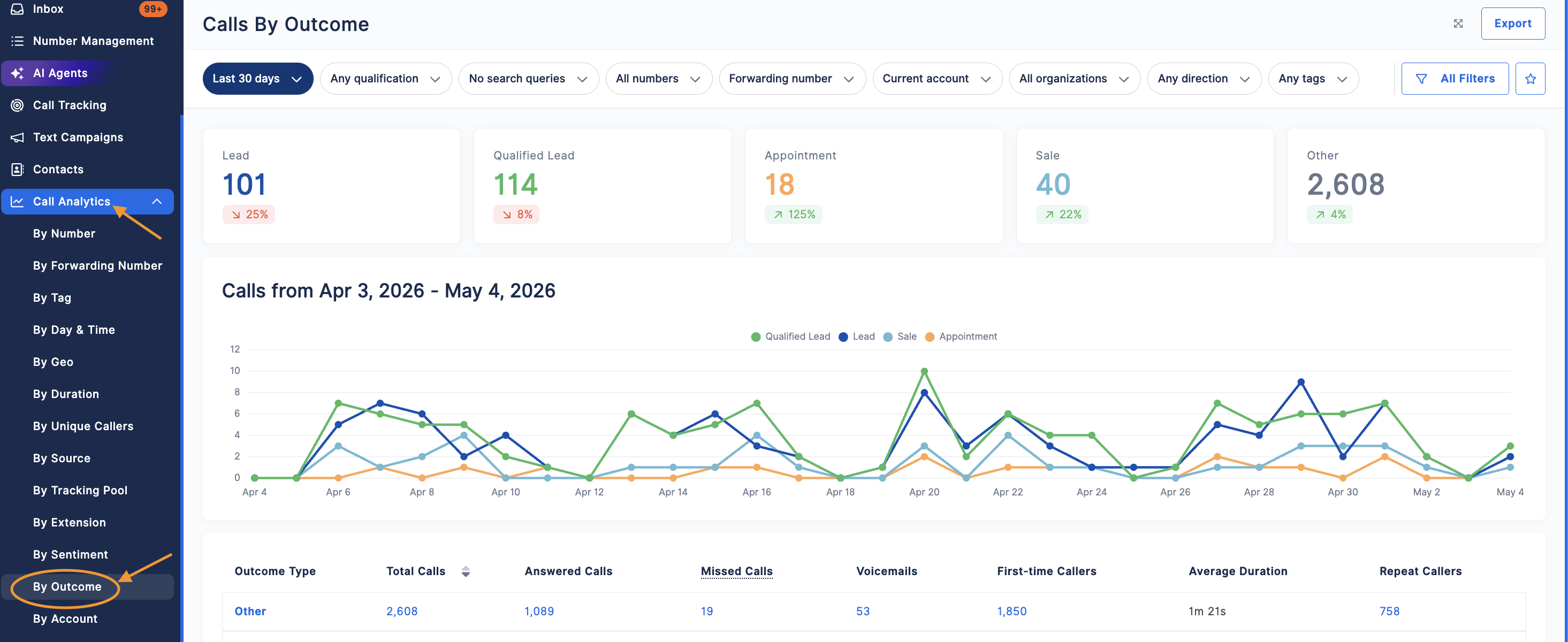
How to Use the Calls by Lead Dashboard
The Calls by Lead dashboard gives you a clear breakdown of how your calls are categorized across your selected date range.
Filters and Date Range
At the top of the page, you can filter your data by:
- Date range (e.g., Last 30 days)
- Lead type (Lead, Qualified, or Other)
- Phone numbers
- Forwarding number
- Account or organization
- Call direction
Use All Filters to refine your data further.
Key Metrics
At the top of the report, you’ll see three KPI cards:
- Leads – Total calls marked as leads
- Qualified Leads – Total calls marked as qualified leads
- Other – Calls not marked as leads or qualified
Each KPI:
- Displays percentage change compared to the previous period
- Updates based on your selected filters
- Can be clicked to filter the report by that lead type
Call Trends Chart
The chart displays call activity over time:
- X-axis – Selected date range
- Y-axis – Number of calls
- Lines – Separate lines for:
- Leads
- Qualified Leads
Note: The Other category is not included in the chart.
This helps you track trends and compare performance over time.
Summary Table
Below the chart, the table provides a detailed breakdown of calls by lead type.
You can view:
- Lead Type – Click to drill down
- Total Calls – Total number of calls
- Answered Calls – Calls that were answered
- Missed Calls – Calls that were not answered
- Voicemails – Calls that went to voicemail
- First-time Callers – Unique callers
- Repeat Callers – Returning callers
- Average Duration – Average call length
Table Features:
- Columns are sortable (default: Total Calls descending)
- Pagination with adjustable rows per page
- Clicking any value opens a detailed view of those calls
Viewing Detailed Call Activity
Clicking a KPI or any value in the table will open the Detailed Activities View, where you can:
- View individual call records
- See lead and qualification status
- Review call details like duration, source, and contact
- Filter and sort results for deeper analysis
Alerts and Messaging
Low Lead Assignment Warning
If fewer than 50% of calls have a lead assigned, you’ll see a warning message.
This includes:
- The number of calls with lead values vs total calls
- A “Show calls without lead assignment” option to quickly identify missing data
No Lead Data Available
If no calls have lead assignment, the report will display:
“We haven't detected any lead tracking data for calls in this date range.”
How to Export Calls by Lead Data
- Click Export Calls in the top-right corner
- The report will be generated based on your current filters
-
You will receive the export once it is ready


Why This Report Matters
The Calls by Lead report helps you:
- Track how many calls turn into leads
- Measure the quality of your leads
- Identify missed opportunities
- Improve follow-up and sales performance
Need Help?
If you have questions during this process, you can reach out to our support team via email: support@800.com.