
You can now share 800.com with friends and colleagues and earn rewards when they sign up. Follow the steps below to find your referral link, share it, and start earning credit.
Where to Find Your Referral Link
- Log in to your 800.com account.
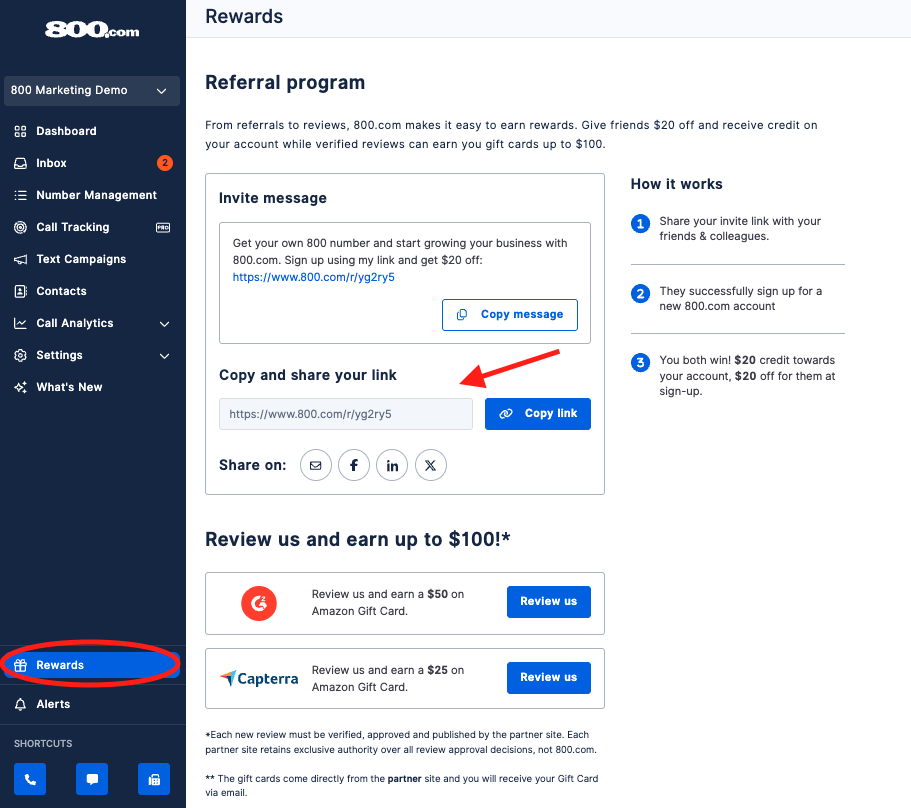
- From the left-hand menu, click Rewards.
- You’ll see your personal referral section with a unique link and prewritten message.
- You can either:
- Click Copy message to share the full invite, or
- Click Copy link to share just your referral URL.
How the Referral Program Works
- Share your link — Send it to friends, clients, or colleagues via email, text, or social media.
- They sign up — Your referral must create a new 800.com account using your shared link.
- You both earn — Once their account is active, you’ll receive $20 credit, and they’ll get $20 off their sign-up.
How Rewards Are Applied
- Your $20 referral credit is automatically applied to your 800.com account once the referred user completes their sign-up.
- There’s no limit to how many people you can refer — the more you share, the more you earn!
🚨Bonus: Earn Gift Cards for Reviews
You can also earn up to $75 in Gift Cards by leaving new and verified reviews of 800.com on trusted platforms like G2 and Capterra.
Just visit the Rewards page and scroll down to Review us under each review section to participate. You must complete the review via the links in your dashboard in order to receive the gift cards. Once your review is accepted and published, the review site will send your gift card to your email directly.
Need Help?
If you have any issues with your referral link or credits, contact our support team at support@800.com, and we’ll be happy to help.