
Enhanced Caller ID (ECID), is an optional add-on that gives you instant access to detailed caller information the moment a call or text comes in. Instead of seeing just a phone number, you’ll get rich insights like name, address, email, carrier, and more — helping you qualify leads faster, follow up more effectively, and eliminate manual data entry.
Available to all 800.com users as an optional add-on.
Below is a full walkthrough video and a step by step guide that will review:
- What Enhanced Caller ID is and How it works
- How to enable and use this new feature in the Dashboard and App
- Add-on details and pricing
- Tips on what you can do with all of this new information provided
- Frequently Asked Questions
You can reach out to us anytime with questions at Support@800.com. You can also book an onboarding session HERE.
What is Enhanced Caller ID?
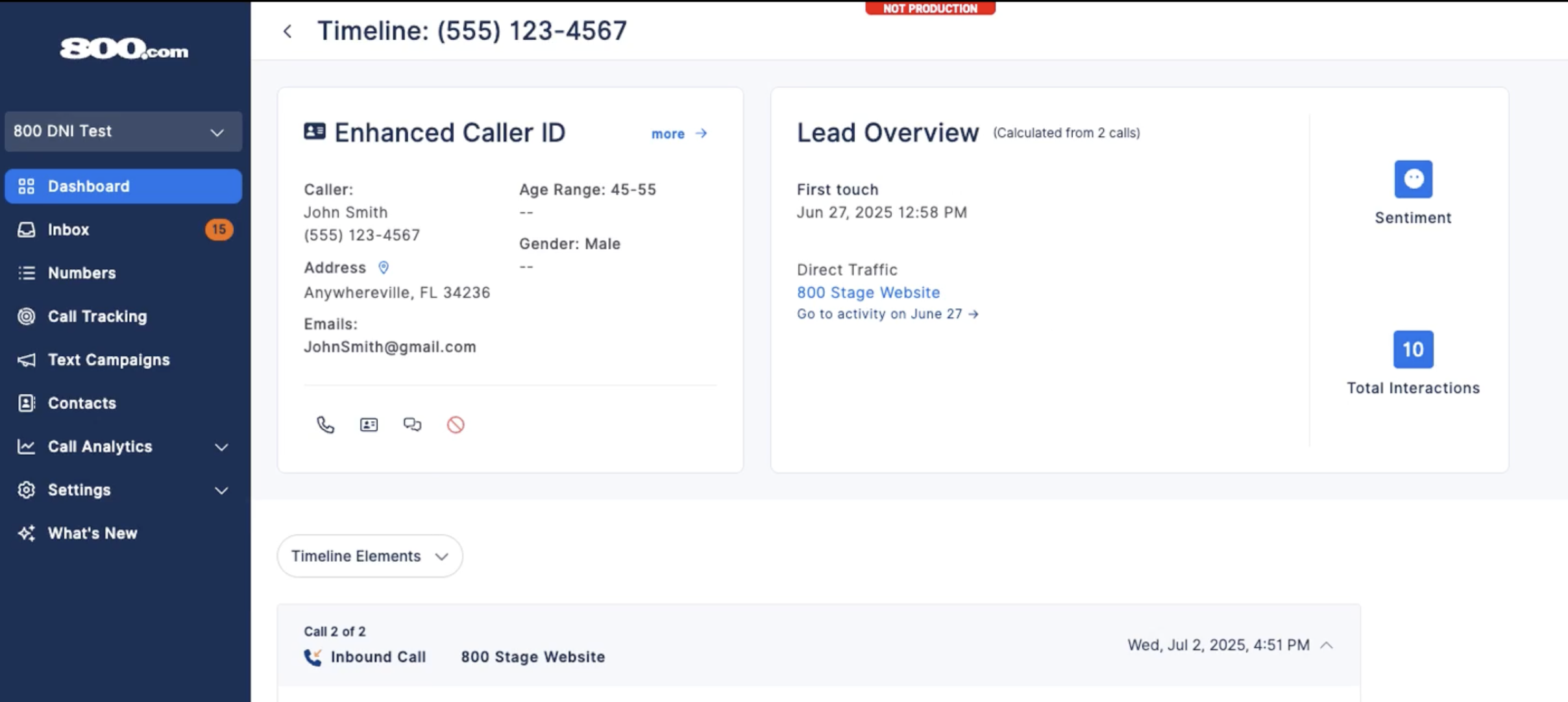
Enhanced Caller ID is a powerful add-on feature that reveals rich, real-time data about your inbound callers the moment the phone rings or you receive a text. Instead of just a number, you'll now see detailed caller information directly from your dashboard or app such as:
- Full name
- Address (with Google Maps view)
- Email addresses
- Age range
- Gender
- Carrier
- Line Type
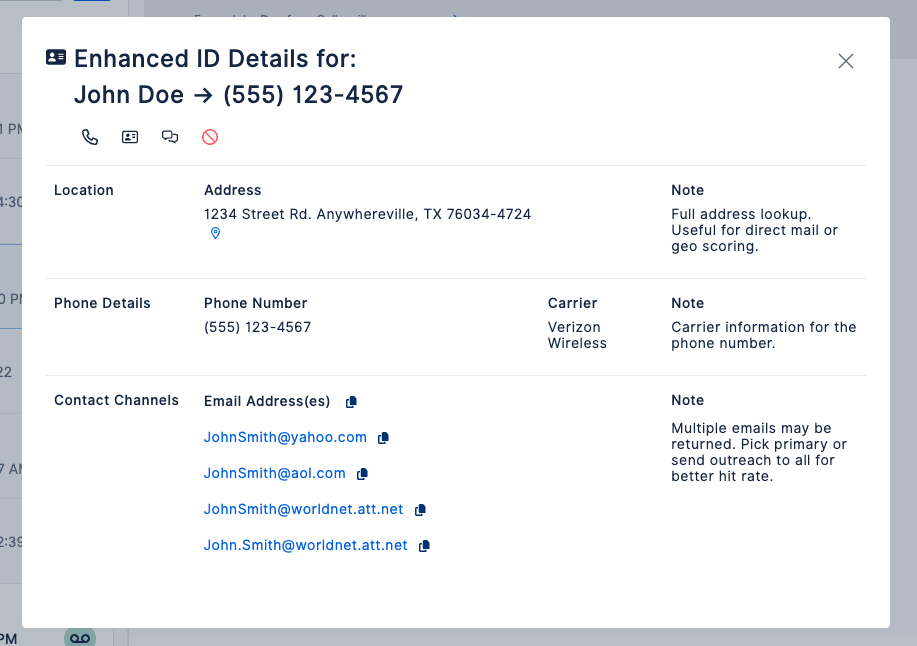
This data empowers you to know your caller before answering, qualify leads faster, improve targeting, and streamline communication, reducing manual entry and saving time.
How to Enable Enhanced Caller ID for your account
- Go to your Dashboard > Settings > Billing and Plans > Add-Ons
- If it is an Organization account, select the Organization > Billing and Plans > Add-On(s)
- Find Enhanced Caller ID and toggle it to On
- You will then be walked through our module to:
- Review and accept pricing terms
- Pricing terms are per call and cost .10 for Pro Plans and .15 for all other plans
- Review and accept pricing terms
- Done! Caller data will start appearing immediately with every call
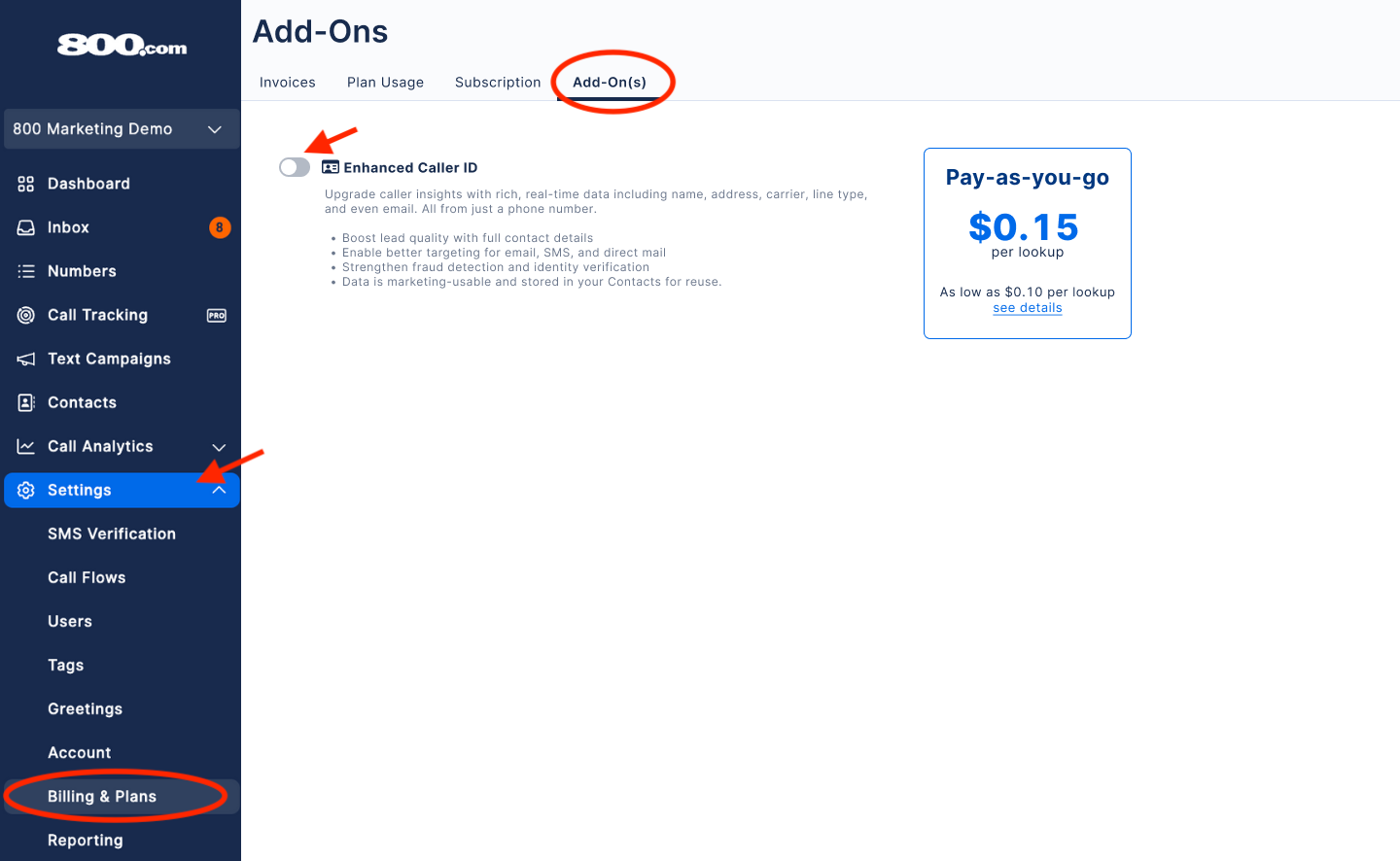
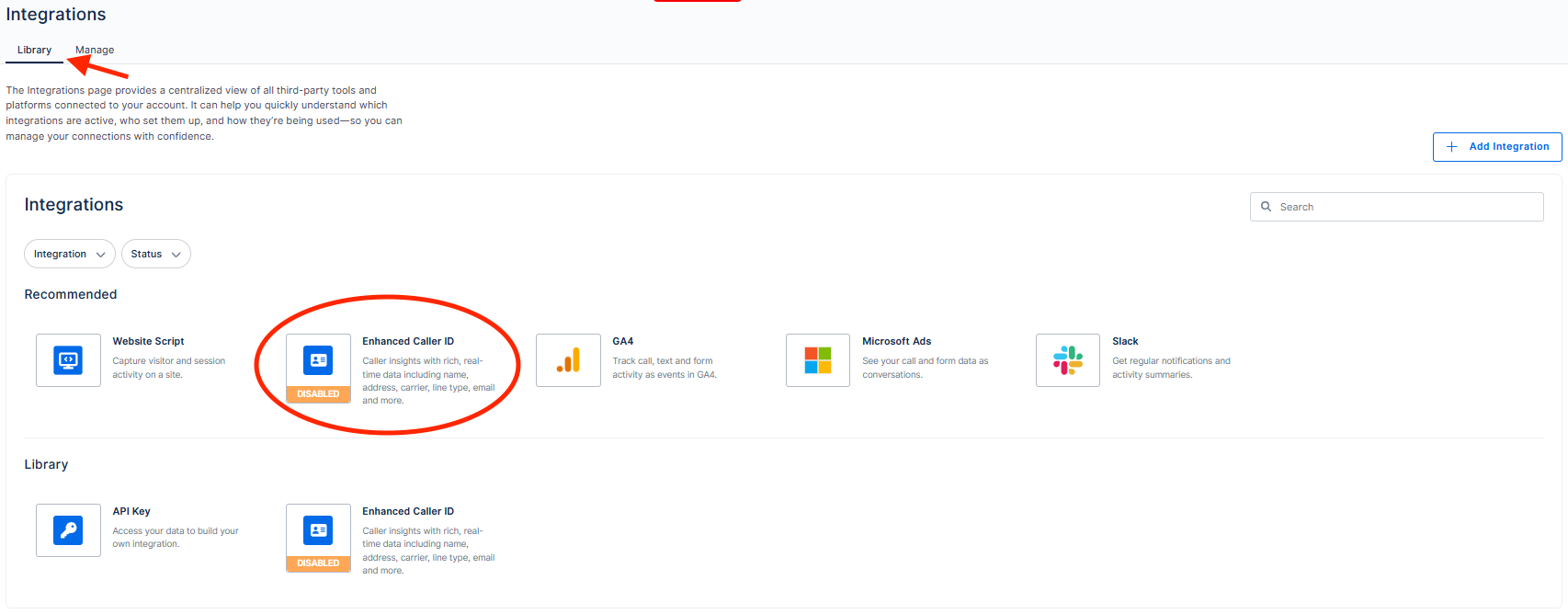
If you are on the Pro Plan, You can also enable and manage the Enhanced Caller ID feature under your integrations.
Settings > Integrations > Library > Click Enhanced Caller ID integration
Enable Enhanced Caller ID in your 800 Mobile App
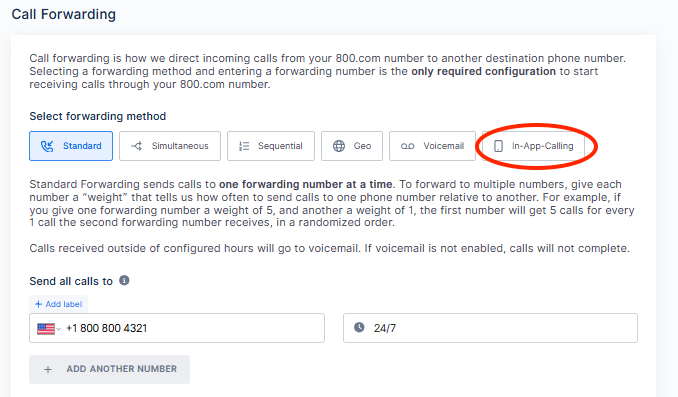
In order to enable Enhanced Caller ID in the app you will first need to turn on the In-App Calling feature from your dashboard.
- Go to your Dashboard > Numbers
- Select the number you would like to enable
- Scroll down to the Call Forwarding section
- Select the "In-App Calling" tab
- Select "Yes" to disable call forwarding to your phone number (Don't worry you can configure multiple recipients for calls in the settings page that follows)
- If you have not done so already, you will need to create or set up a "User" in your account, for anyone in your business you want to receive calls.
Learn more about enabling and configuring In-App calling HERE.
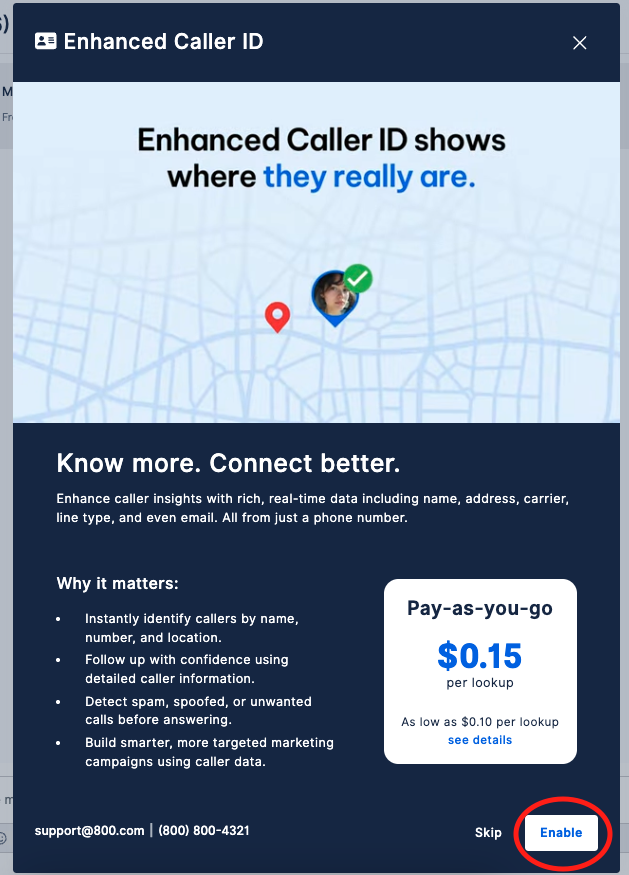
An additional option to view and enable the Enhanced Caller ID information will also be available in your inbox view, prior to enabling it.
If you are viewing any of your incoming calls, texts or VM's you will now see a "Want more caller info?" button to the right of the number.

If selected you will be brought through a guide to learn more and enable the feature.
How Does It Work?
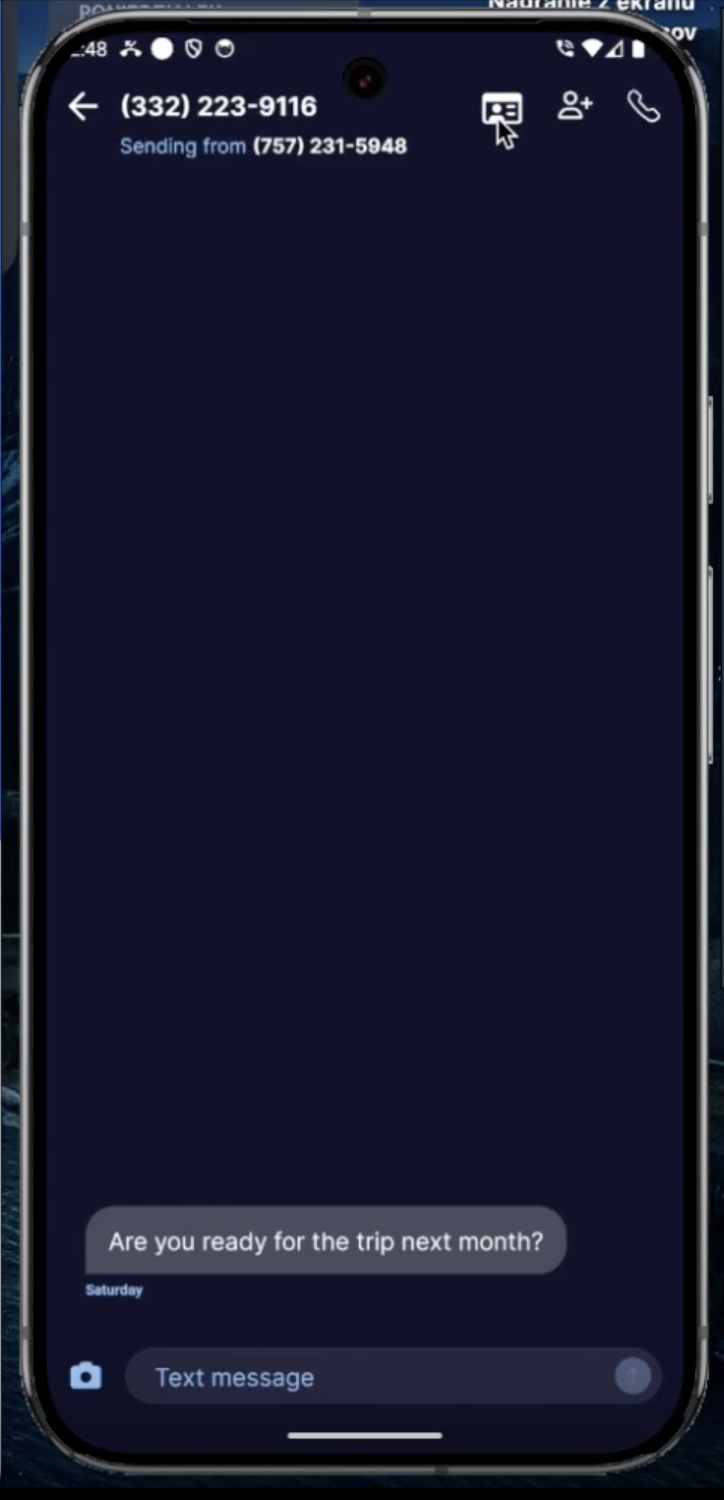
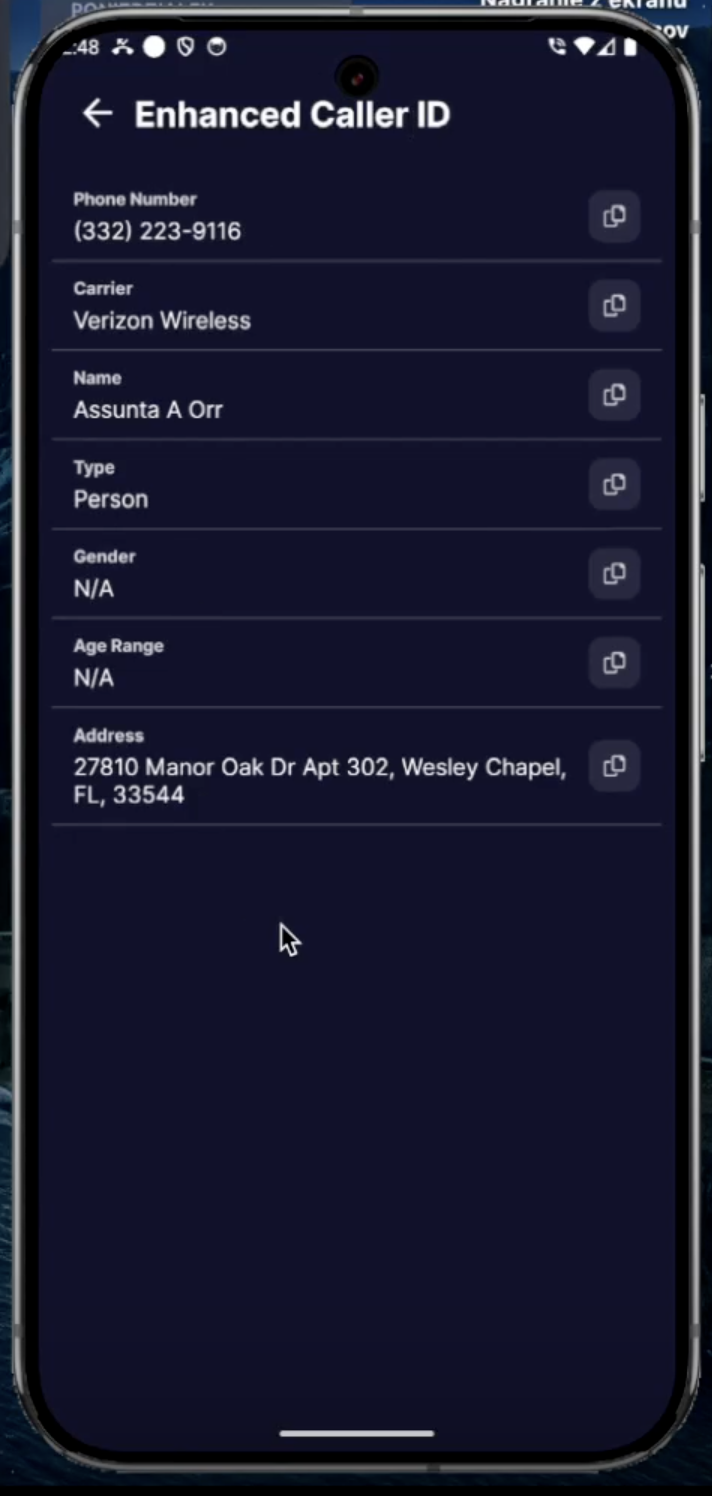
Once enabled, Enhanced Caller ID retrieves caller details in real-time as a call or text is coming in and will be shown via your dashboard or app!
Here are all of the places you can find this info:
800.com Dashboard
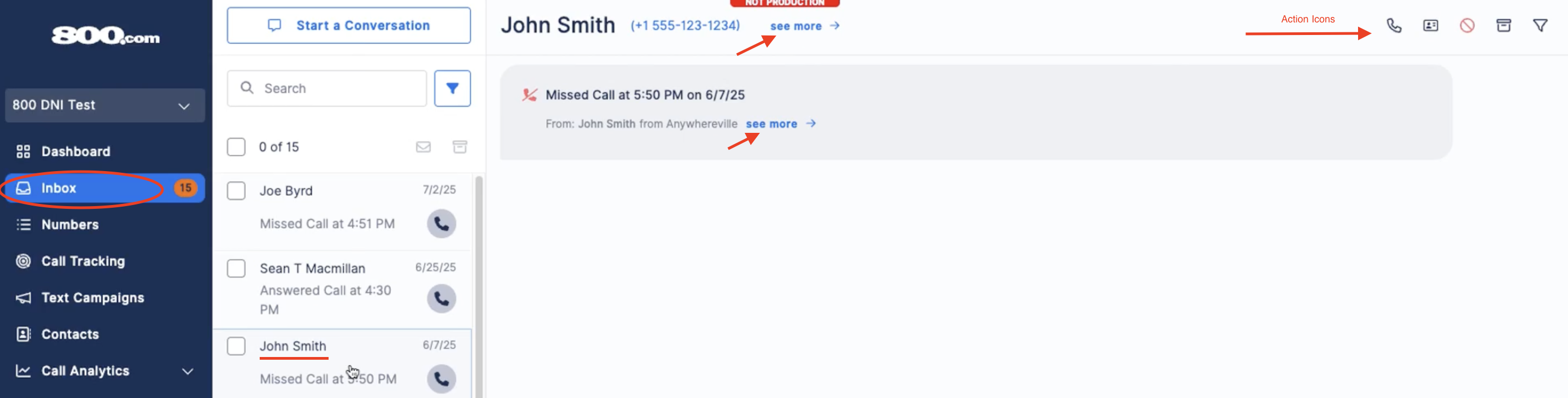
- Call log - Just click on the callers name to see full details
- Timeline View - From your call log, navigate to the timeline icon on the far left, of the caller you would like more info from on, and click to see all info.
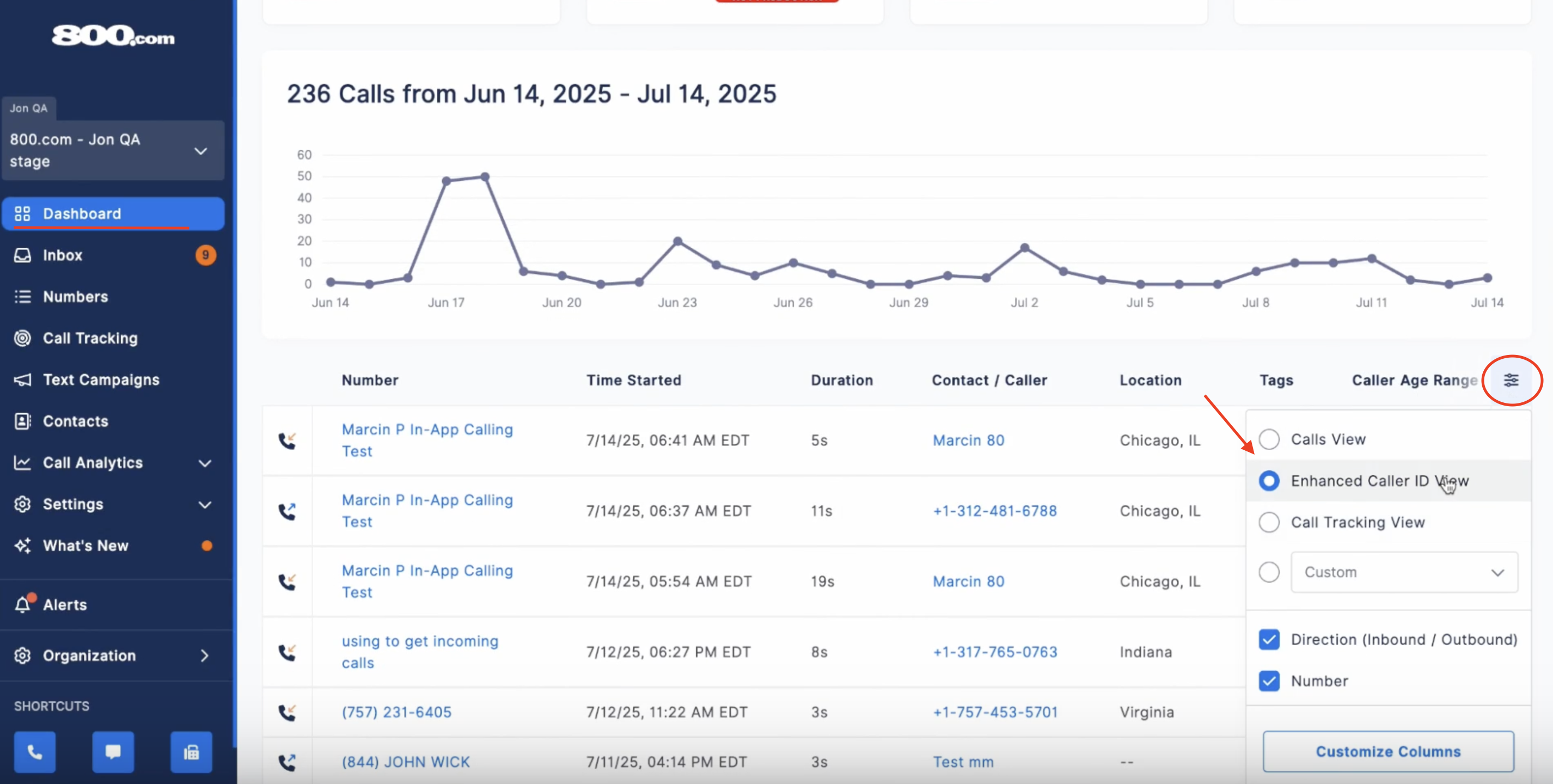
- Enable the Caller Enhanced ID View on your dashboard filters
You can further customize your Enhanced Caller ID view from the Customize Columns button
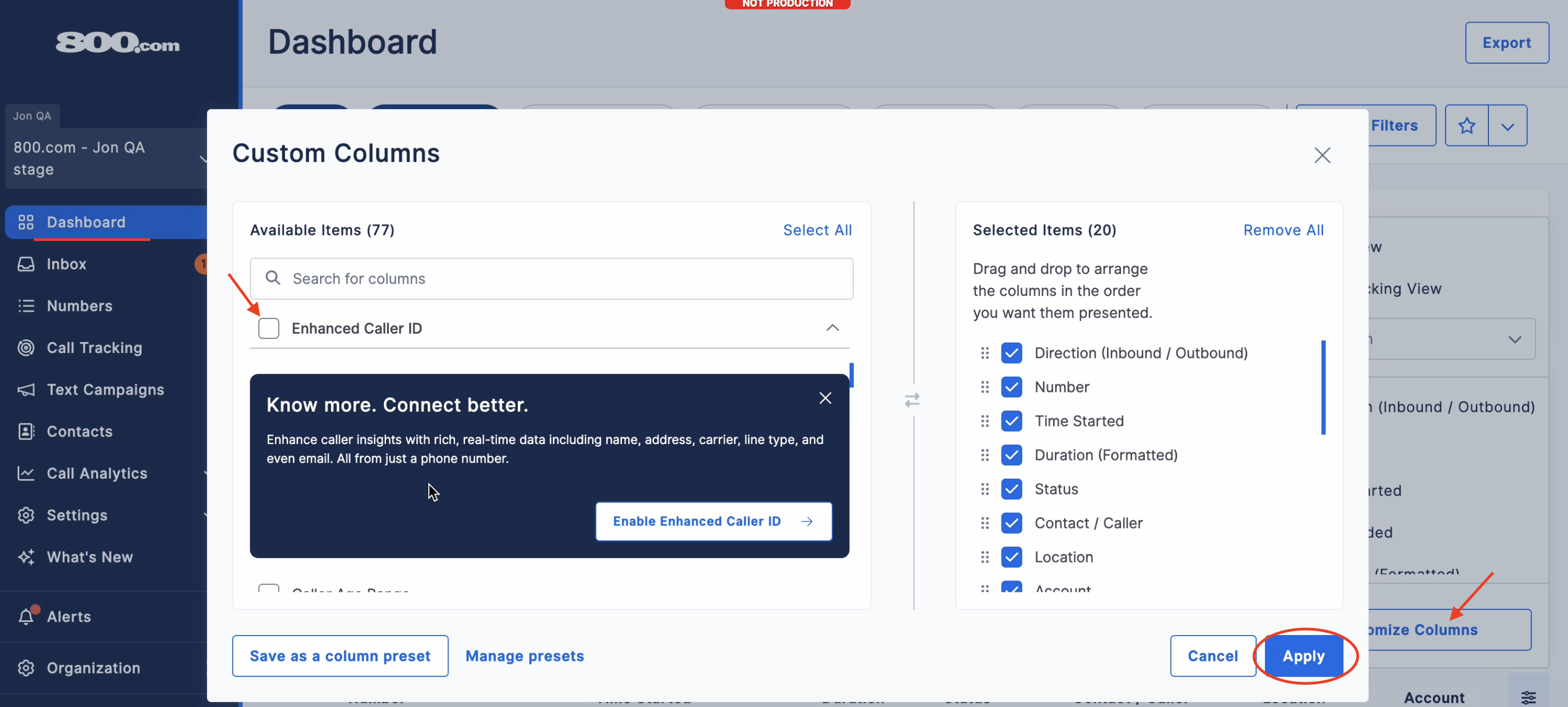
Once enabled, all Enhanced Caller ID information will automatically be shown in your view.
If you have not enabled the feature yet, you will see a pop up that allow you to enable the feature by clicking the "Enable Enhanced Caller ID" button in the pop-up.
Inbox
- Just click on the callers name to see more info
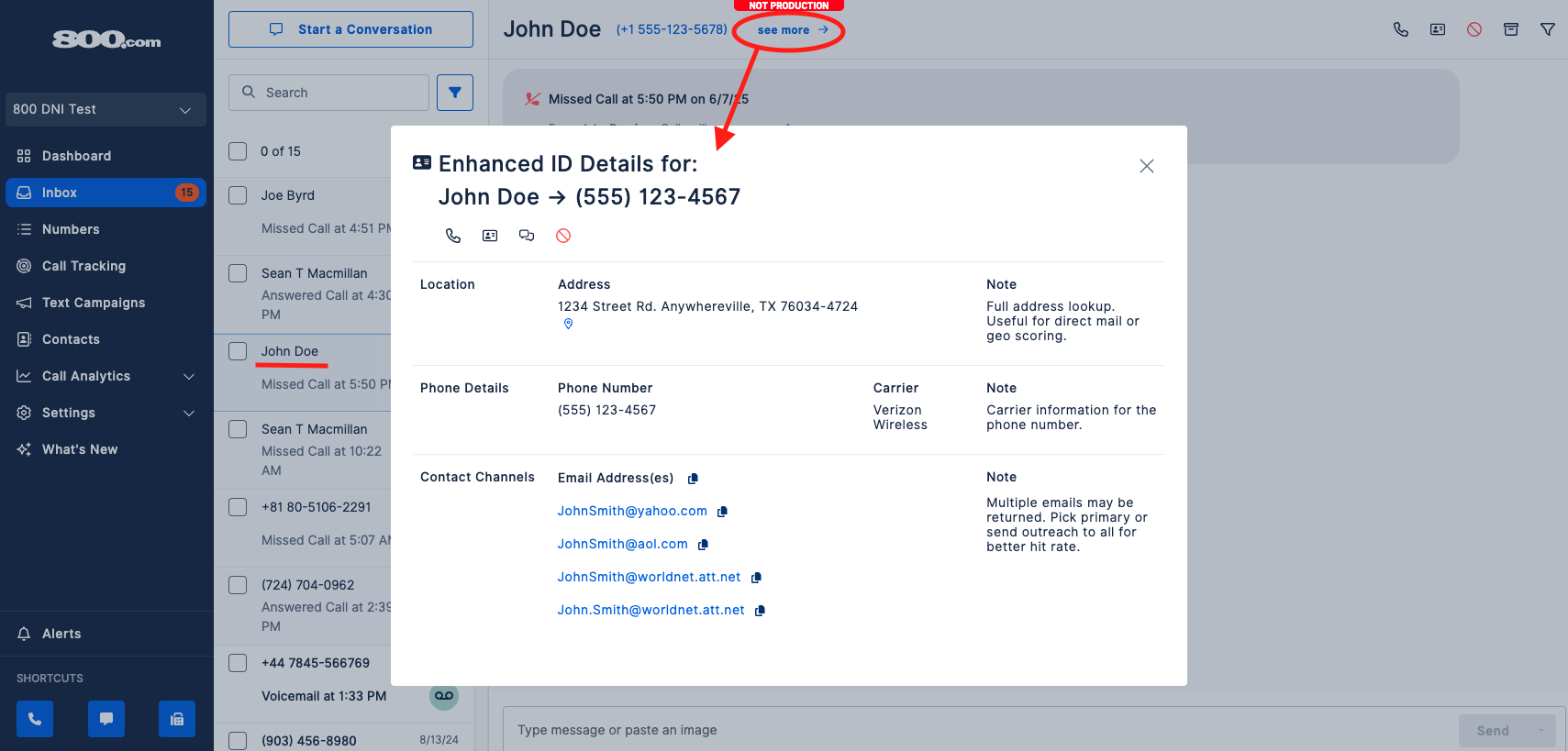
You can see even more details by clicking on "See More" from the dashboard Enhanced ID box or clicking on any number in your inbox. Whether it is a call, missed call or voicemail - The "See More" button will reveal more details and lets you:
- Copy emails or addresses
- Call, text, or block the number
- View location
- Create a contact - All Enhanced Caller ID info will auto-fill the contact card
Create Contacts with Enhanced Caller ID (No Call Required)
You can use Enhanced Caller ID (ECID) to retrieve full contact details without needing an active or previous phone call.
From any screen, click Add Contact and enter a phone number. Once entered, click on the icon to perform a manual lookup and populate the contact card with available contact details, such as name, location, and other associated information.
No phone call is required to retrieve details
Each lookup counts as a single ECID lookup and is billed accordingly
Contact information is automatically filled in when available
After reviewing the details, you can save the contact card to store the information in your account.
If you attempt to close the window without saving, you will see a confirmation message:
“Any unsaved changes will be lost if you close or leave this window.”
You can then choose to:
Cancel (return and continue editing), or
Exit without Saving
App View
Why It’s Useful for Your Business
Enhanced Caller ID turns every call into a smarter interaction and powerful lead:
- Lead qualification: Know who’s calling, whether they’re a real lead, and how to respond
- Better support: Give customers a personal touch with pre-loaded details
- Fraud detection: Spot suspicious or spoofed numbers before picking up
- Faster follow-up: Automatically create or update contact records with full data
It’s a major upgrade for sales, marketing, and support workflows.
How You Can Use It in Marketing
Enhanced Caller ID gives you access to verified contact details you can use across multiple campaigns:
- Email: Follow up quickly using the captured email address
- SMS: Send personalized text follow-up, offers or reminders
- Direct mail: Use address info to build a local campaign for marketing mailers
- Segmentation: Group callers by region, age range, or gender.
Pricing Details
Enhanced Caller ID is a paid add-on feature with transparent, flexible pricing:
- Unlimited & Personal Plans: $0.15 per record lookup
- Pro Plans: $0.10 per record lookup
All charges are billed monthly and visible in your Billing > Add-Ons section of your dashboard.
FAQ'S
How soon will I see the data?
Caller information populates in real time as the phone rings. For most users, caller data appears instantly. In rare cases where extra data (e.g., address or email) is retrieved, there may be a delay of just a few seconds — often completed before the call is answered, especially if a greeting or call recording notice is in use.
Can I manually trigger a lookup?
Yes — if you want additional details only on specific callers, you can trigger a lookup manually.
If you do not have the feature enabled: You will see an option "Want more info?" for each call in your inbox and dashboard timeline.
Will it update my contact records?
For now, you can save this info manually to your existing contact or create a new contact, from the timeline or inbox view and the enhanced caller id information will pre-populate in the contact fields. Automatic update of new and existing contacts with the Enhanced Caller ID information is coming soon.
Can I turn it off?
Yes. You can opt out at any time via the Billing and Plans section, under Add-Ons. You can also turn it on or off from your Settings Tab > Integrations > Manage Tab (on top left) > Select the settings icon > Toggle off.
You can manage the feature settings and monitor usage from the same settings panel. It can also be enabled directly from the Integrations list under settings — the modal will walk you through setup.
Where will the data appear?
Caller info appears in the:
- Dashboard Call Log / Timeline
- Inbox
- Contact Records
Is this available for integrations?
Yes! You can manage Enhanced Caller ID in your Integrations list. It’s compatible with systems like Salesforce, where available data can now sync to your CRM.
For step-by-step setup help or a feature demo, reach out to us directly at Support@800.com or book a call with our support team HERE.