
Download the mobile app here.
The In-App Calling feature allows you to make and receive calls directly from your web browser or the 800.com mobile app.
Please note that this must be turned on in order to view and use the Enhanced Caller ID add-on in the app.
Enable In-App Calling via the Dashboard
In order to enable Enhanced Caller ID in the app, you'll first need to turn on In-App Calling from your dashboard.
- Go to Number Management > Numbers.
- Select the number you'd like to enable.
- Find the Call Forwarding section.
- Under Select forwarding method, choose In-App-Calling.
- If you're switching from another forwarding method, you'll see a confirmation asking whether to proceed, since this will remove any existing forward numbers, you will need to click Yes.
- All users receive calls by default. If you only want specific users to receive calls, click Choose specific users instead, then:
- Click Add User to add a recipient, and select them from the dropdown (each user shows a live status indicator, like "Away").
- Click Add User again to add more recipients — each gets their own row.
- Or click Send to All to revert to sending calls to every user.
- For each user, you can set when they receive calls by clicking the hours field (defaults to 24/7). Options include Same as Account Business Hours, Outside Business Hours, 24/7, common weekday/weekend presets, or a Custom schedule — plus a time zone selector if you need it to differ from your account default.
- Use the trash icon to remove a user from the list.
- Anyone in your business (besides yourself) who should receive calls needs to be a User on your account. If they aren't already, invite them and add them as a User before continuing.
- Configure the remaining settings (see below), then click Save in the top right. Changes aren't applied until you save.
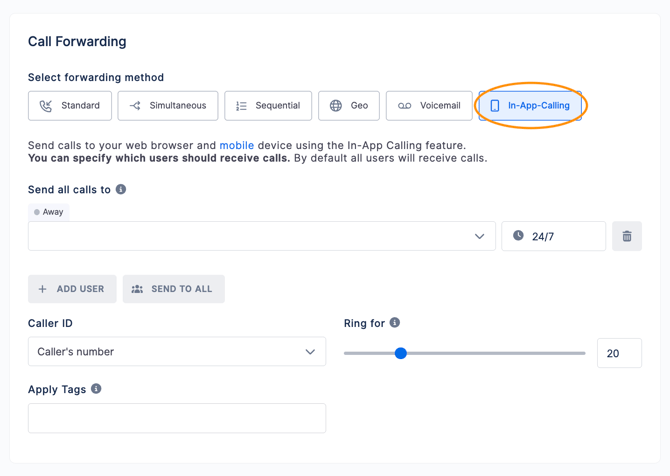
Configure your settings
- Caller ID — controls what the recipient sees when a call comes through this method. Defaults to Caller's number.
- Ring for — how long (in seconds) each forwarding target has to answer before the call moves on. A single ring is roughly 6 seconds, so the default of 20 seconds is about 3 rings; 20 seconds is the recommended setting.
- Apply Tags — optionally tag calls forwarded through In-App Calling so they're easier to filter in your Dashboard and Call Analytics.
- Need to add a user first? Go to Settings > Users and invite them by email — this should be the same email they'll use to log into the app. See Adding Users for the full walkthrough.
- Download the app: https://800.com/app
- Users log in with the same email and password they use for the dashboard.
- Click Save in the top right — you'll see an "unsaved changes" indicator until you do.
- That's it — you and any additional users can now make and receive calls directly from the app or your web browser.
How to make and receive calls in the app
Once enabled, you can make and receive calls directly in the app. Here's how.
There are two ways you can make a call from your app
- In your app, select the "Keypad" tab in the bottom menu and enter the number you would like to call, if you have multiple phone numbers with us, there will be a dropdown to select which number you would like to call from. Then just hit the call button.
- You can also select the "Contacts" tab in the bottom menu and select any contact from your 800 contact list or your phone. Just click on the contact name or number and you will have the choice to call, text, block or delete.
When you are receiving a call
Your phone will ring and it will appear as 800 Audio and show the callers number or contact name. Depending on your notification settings on your phone, you may also receive a banner notification.
If you have Enhanced Caller ID turned on, the additional details will show as well.
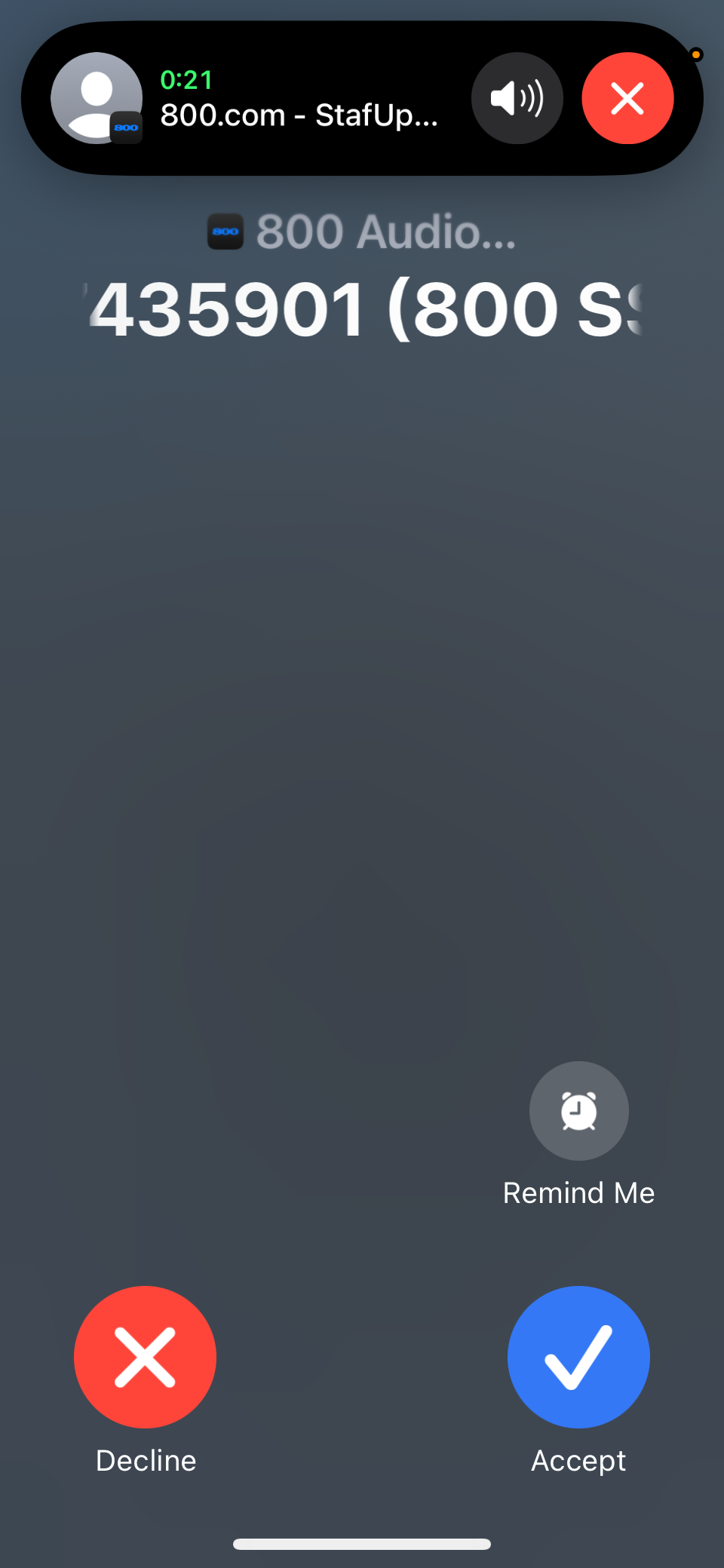
If you are experiencing issues with numbers or users receiving calls, this is often due to the spam filters on the receiving devices. See our Problems Receiving Calls on Mobile Devices article for instructions on how to bypass these issues.