
Log In To Your 800.com Account
Log in to your account. Ensure you have administrative access, as only admins can changes to your account.
- If you’re not already using 800.com, sign up for an account and then log in.
Using Filters
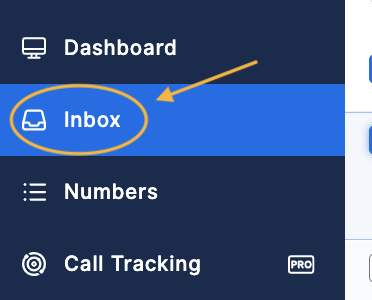
- Go to Inbox.
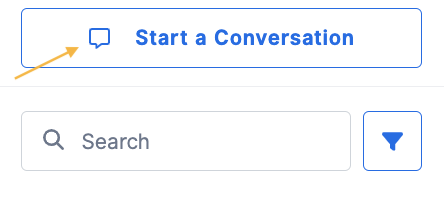
- If you are adding files/pictures to a new message, hit the Start Conversation button.
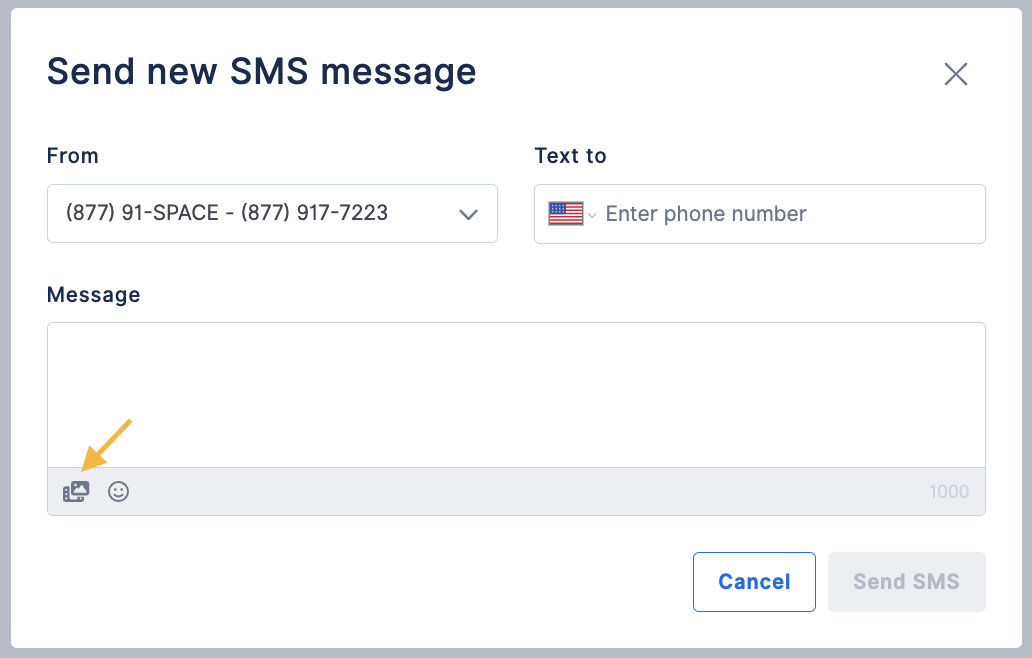
- Choose the outgoing phone number to send the message from > Enter the phone number that will be receiving the files/pictures > click the file/picture icon > select the file you wish to upload > hit Send SMS.
- If you are adding files/pictures to an existing message, select the message you wish to add the files/pictures to > click the file/picture icon > hit Send.

If you have questions during this process, you can reach out to our support team via email: support@800.com.