
Log In To Your 800.com Account
Log in to your account. Ensure you have administrative access, as only admins can make changes to your account.
- If you’re not already using 800.com, sign up for an account and then log in.
Create/Invite A New User
- Go to Settings > click Users.
- Click the Invite User button in the top right corner.

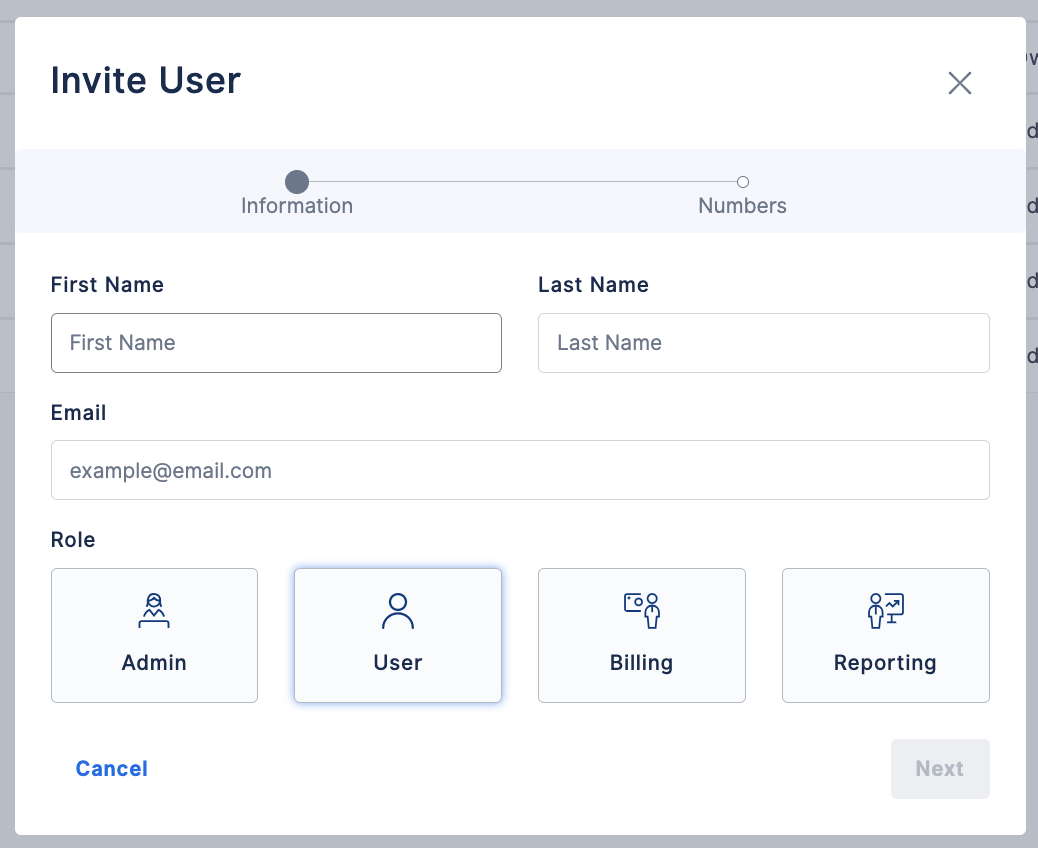
- Enter user information and select the user role.
- Select the number(s) that you would like the user to have access to.
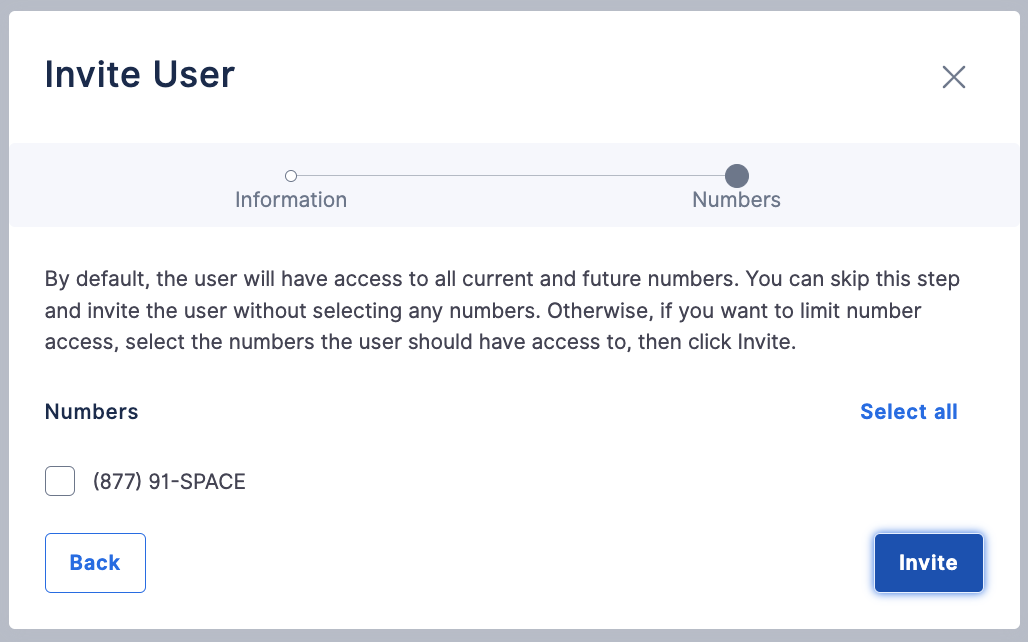
- Click Invite.
Edit User
- Go to Settings > click Users.
- Locate the User you wish to edit > click the 3 dots to the right of the user name

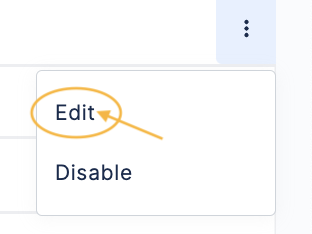
- Select Edit.
- Make changes to User Settings > hit Next > Update.
Disable User
- Go to Settings > click Users.
- Locate the User you wish to edit > click the 3 dots to the right of the user name
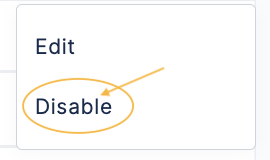
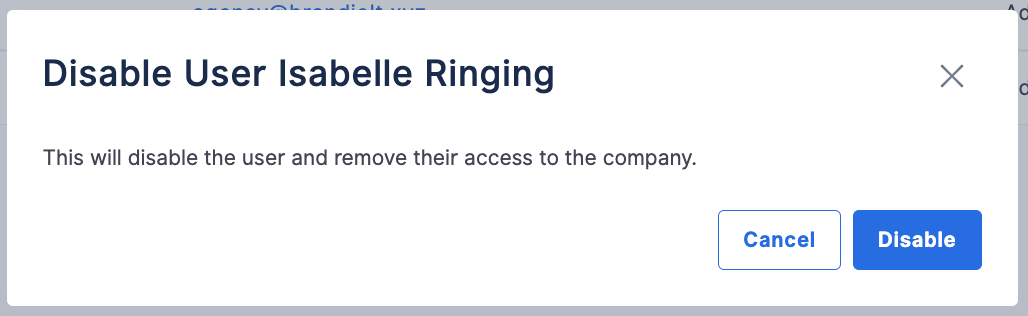
- Select Disable.
- Hit the blue Disable button to finalize.
If you have questions during this process, you can reach out to our support team via email: support@800.com.