
Whether you are setting up your voicemail for the first time or are making a change, learn how below.
Looking to create your own Greeting first? Click HERE
Step 1: Log In To Your 800.com Account
Log in to your account. Ensure you have administrative access, as only admins can generate and manage Voicemails.
- If you’re not already using 800.com, sign up for an account and then log in.
Step 2: Set Up Voicemail
To set up your Voicemails:
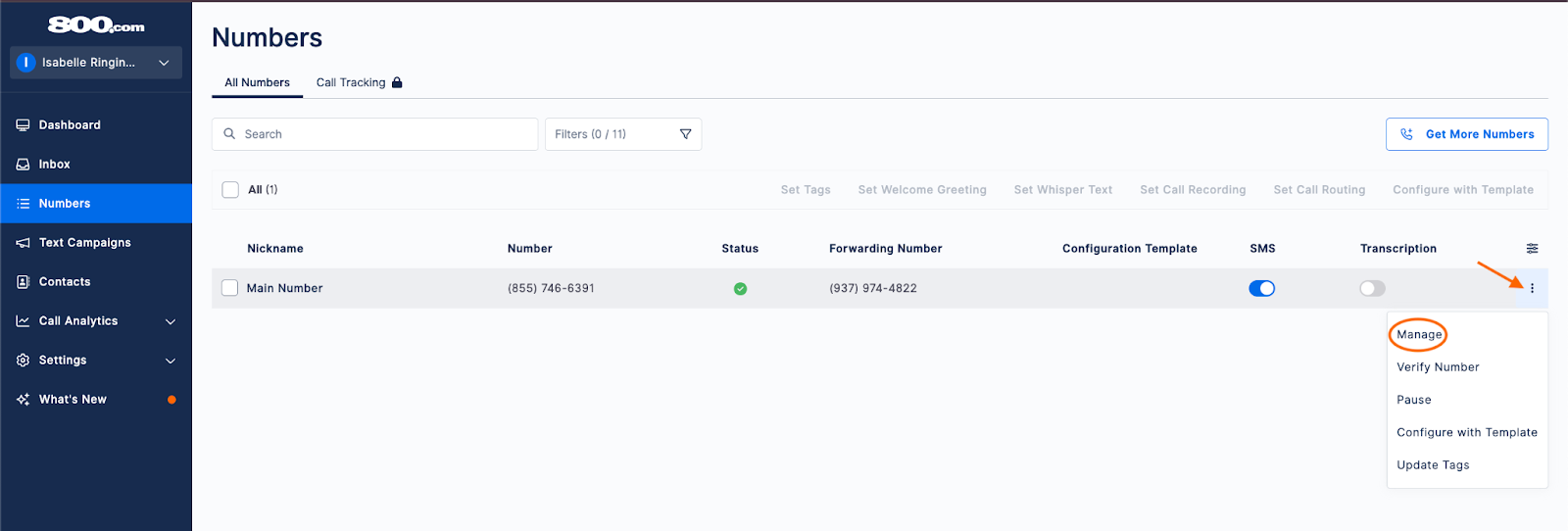
- Go to Number Management > select the number you want to enable notifications
- Click the 3 dots on the right side > hit Manage
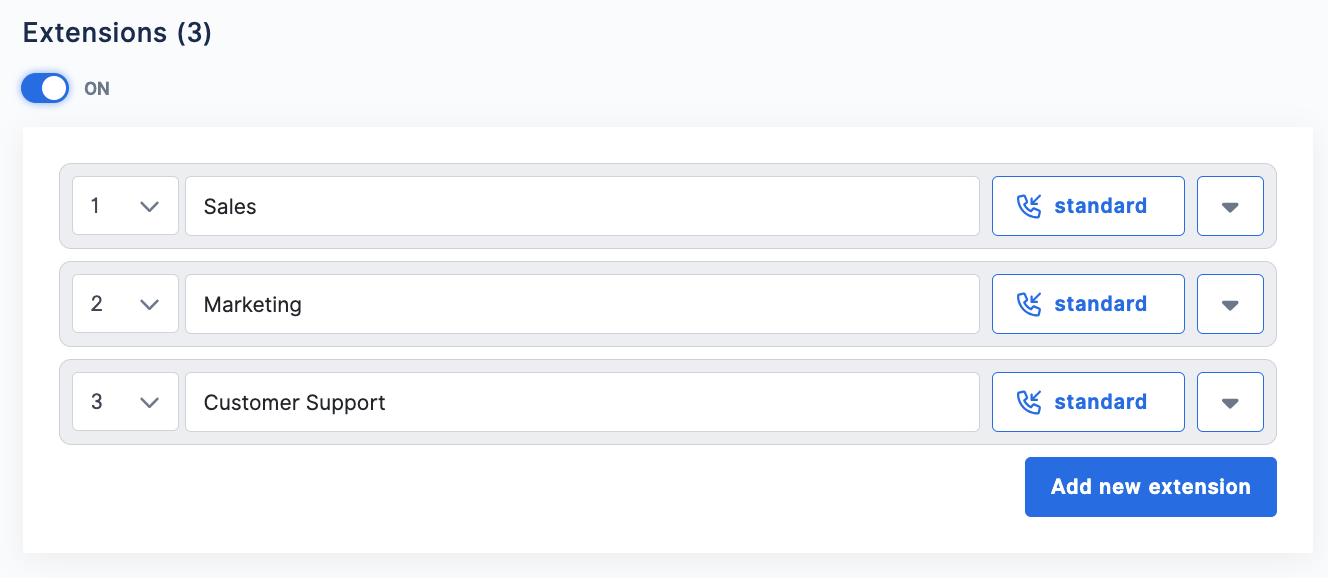
- Scroll down to the Extensions section > toggle to On
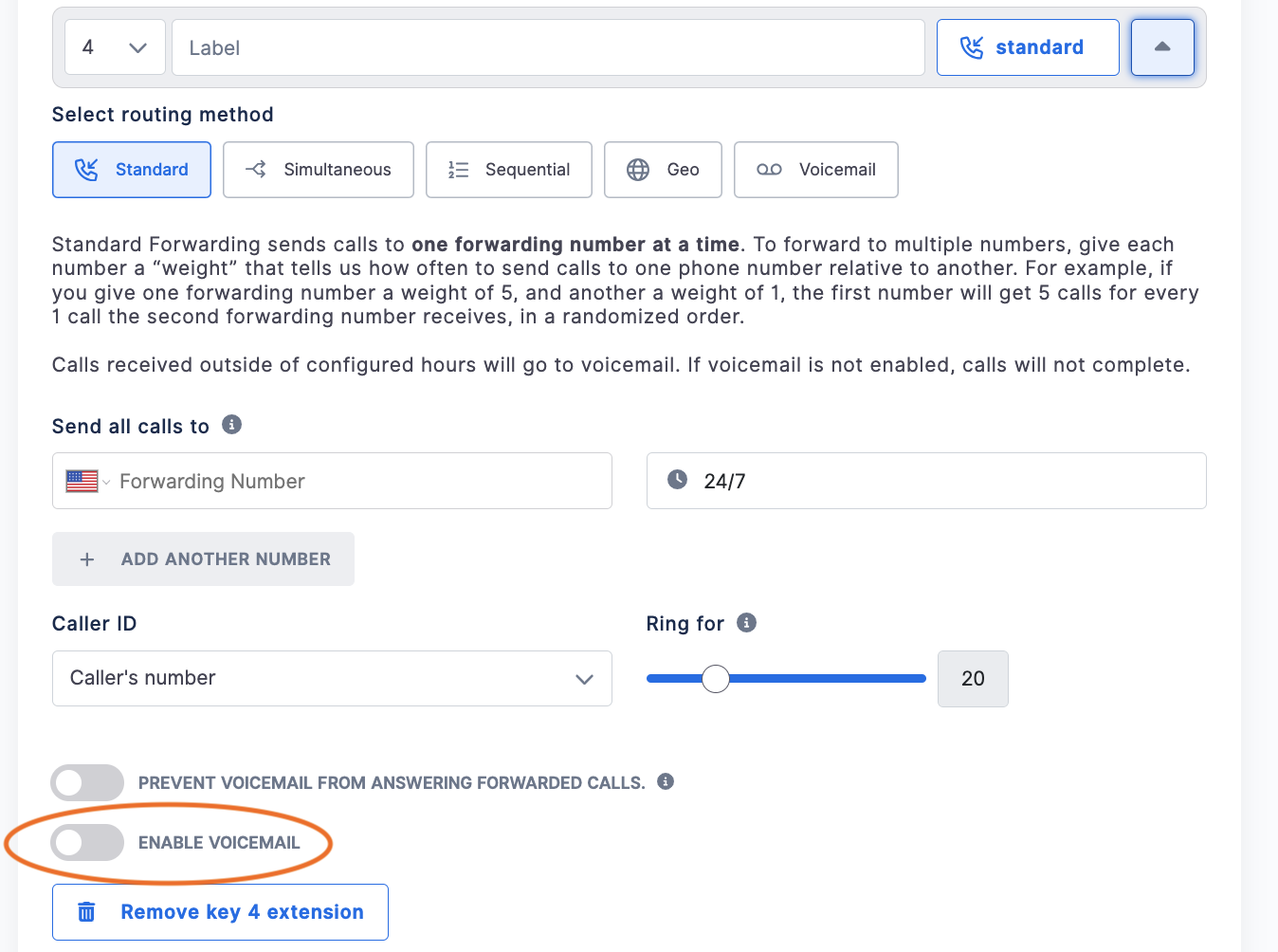
- If you have Extensions set up, you can enable Voicemail under the extensions > toggle Enable Voicemail on
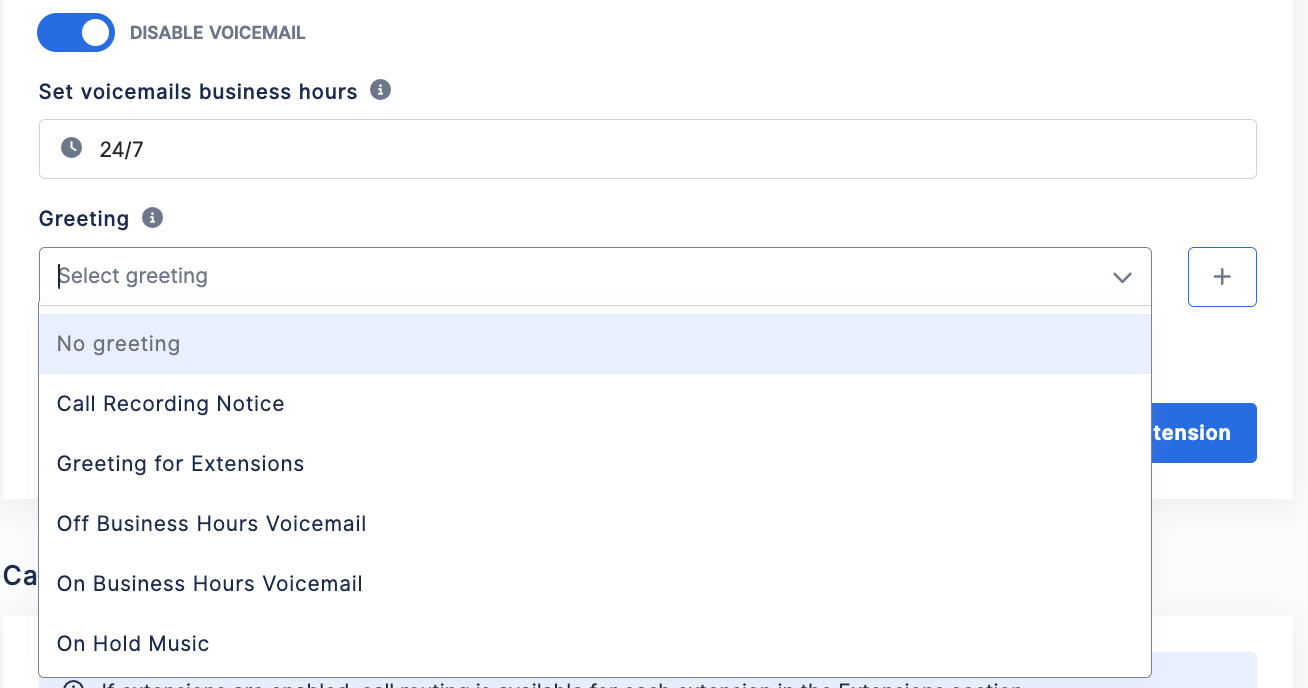
- Set voicemail business hours > select Greeting
- Hit Save at the top of the page to save any changes.
Step 3: Send A Test
Once a Voicemail is enabled, it is important to send a test to confirm that enabling the Extensions were successful.
Disable Voicemails
If a Voicemail needs to be disabled, follow the above steps and then select the extension you need to turn the Voicemail off for > toggle Disable Voicemail to Off

If you have questions during this process, you can reach out to our support team via email: support@800.com.