
You can choose to add your DNI Call Tracking Script to every page or on a single page. Below we will go over both.
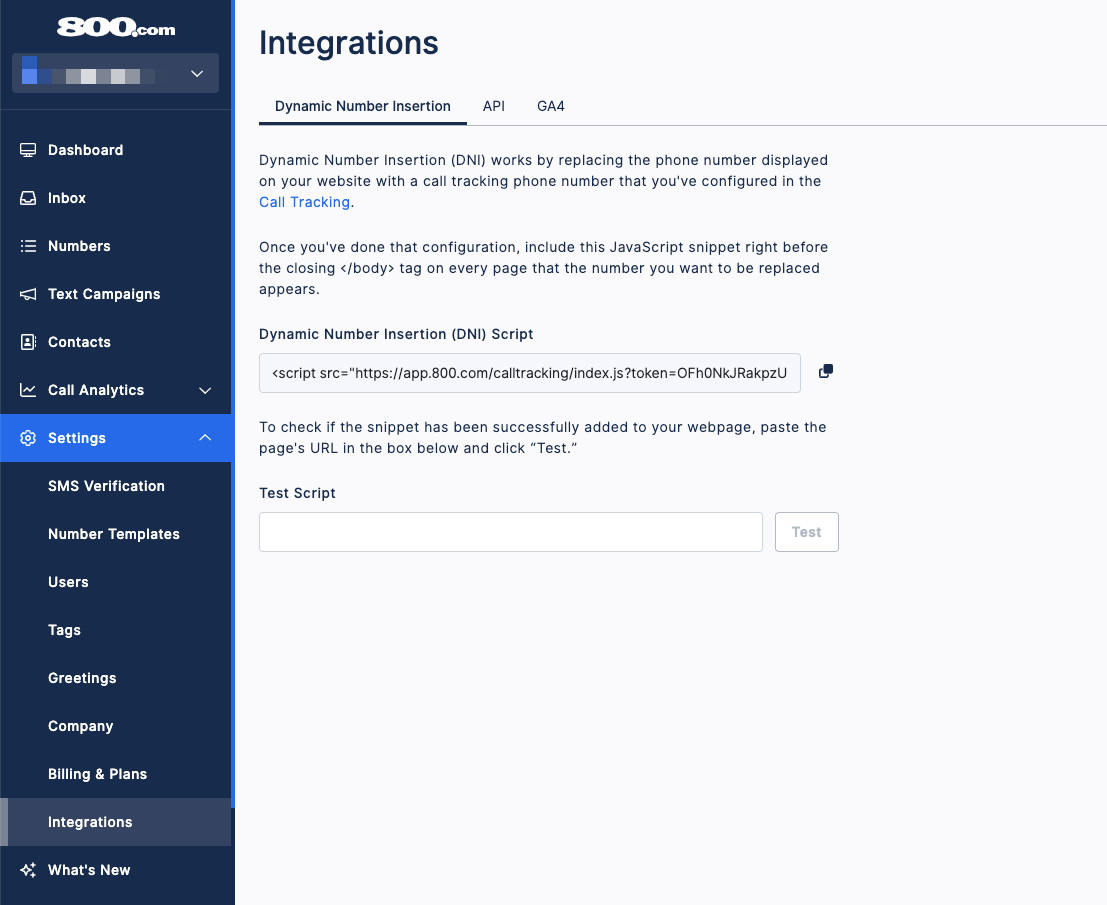
First, find your Dynamic Number Insertion (DNI) Script in 800.com
Log in to your 800.com Account > Settings > Integrations > Copy your Dynamic Number Insertion (DNI) Script
Add Your DNI Script to Weebly on all pages
- Log in to your Weebly Editor
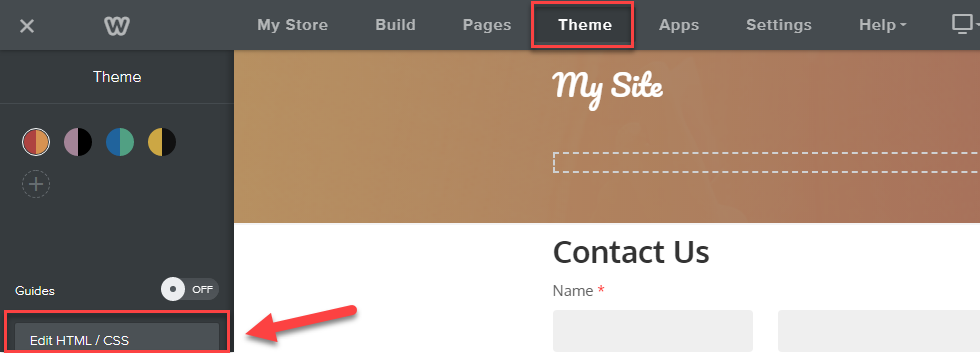
- Select "Theme" from the top editor menu
- Then on the left side menu, click "Edit HTML/CSS" on the bottom left
- Once you are in the Code Editor, select "header.html" under Header Type.
- Paste your DNI Script inside the Head Tags
Need Screen shot
Click the "Publish" button to make your changes live.
Add your DNI script to a single page in Weebly
- Log in to your Weebly account and navigate to the website editor.
- Go to the page where you want to implement DNI.
- Click on the "Build" tab and drag the "Embed Code" element onto your page.
- Click on the "Edit Custom HTML" button within the Embed Code element.
- Paste your DNI script into the HTML box.
- Click outside of the HTML box to save your changes.
Publish your changes
Test your DNI is working
- Log in to your 800.com Account
- Click Settings, then click Integrations
- Copy the url where the DNI is placed
- Paste into the field for Test Script
- Click Test