---
title: How to Integrate 800.com With HubSpot
description: This integration enables you to automatically upload call data from 800.com directly into HubSpot as Contacts and Engagements .
---
[Skip to content](https://support.800.com/en-us/hc/articles/40195849028493-how-to-integrate-800-com-with-hubspot#main-content)
[](https://www.800.com/)
- [Call us (800) 800-4321](tel:+18008004321)
- [Sign in](https://support.800.com/hc/en-us/signin)
Open main navigation
Close main navigation
- [Call us (800) 800-4321](tel:+18008004321)
- [Sign in](https://support.800.com/hc/en-us/signin)
- [Submit a request](mailto:support@800.com)
[Submit a request](mailto:support@800.com)
800.com Help Center
- There are no suggestions because the search field is empty.
1. [800 Support Center](https://support.800.com/en-us/hc?hsLang=en-us)
2. [Call Tracking](https://support.800.com/en-us/hc/call-tracking?hsLang=en-us)
3. [Integrations](https://support.800.com/en-us/hc/call-tracking?hsLang=en-us#integrations)
August 5, 2026
# How to Integrate 800.com With HubSpot
## Sync caller data into HubSpot as contacts and call engagements, then choose how each call is recorded after OAuth setup.
This integration enables you to automatically upload call data from [800.com](http://800.com/) directly into HubSpot as **Contacts** and **Engagements**. A new Contact is created for each unique caller, unless the Contact already exists in HubSpot. For every call, the integration can also create a new Engagement record containing the call details (if configured to do so).
Before getting started, make sure your HubSpot account has the required permissions to create and manage Contacts and Engagements. Once authenticated, you can customize how call data is synced and recorded in **HubSpot**.
## Before Getting Started
Before you begin the integration, you will need to confirm you have:
- An active [800.com](http://800.com) account with admin access.
- A HubSpot account with appropriate permissions (free or paid).
- Necessary permissions to create and manage integrations in both platforms.
## Enabling HubSpot
In the app, select **Settings** \> **Integrations** \>click the **HubSpot** icon.
- For Organizations, go to **Organization** \> **Global Settings** \> **Integrations.**
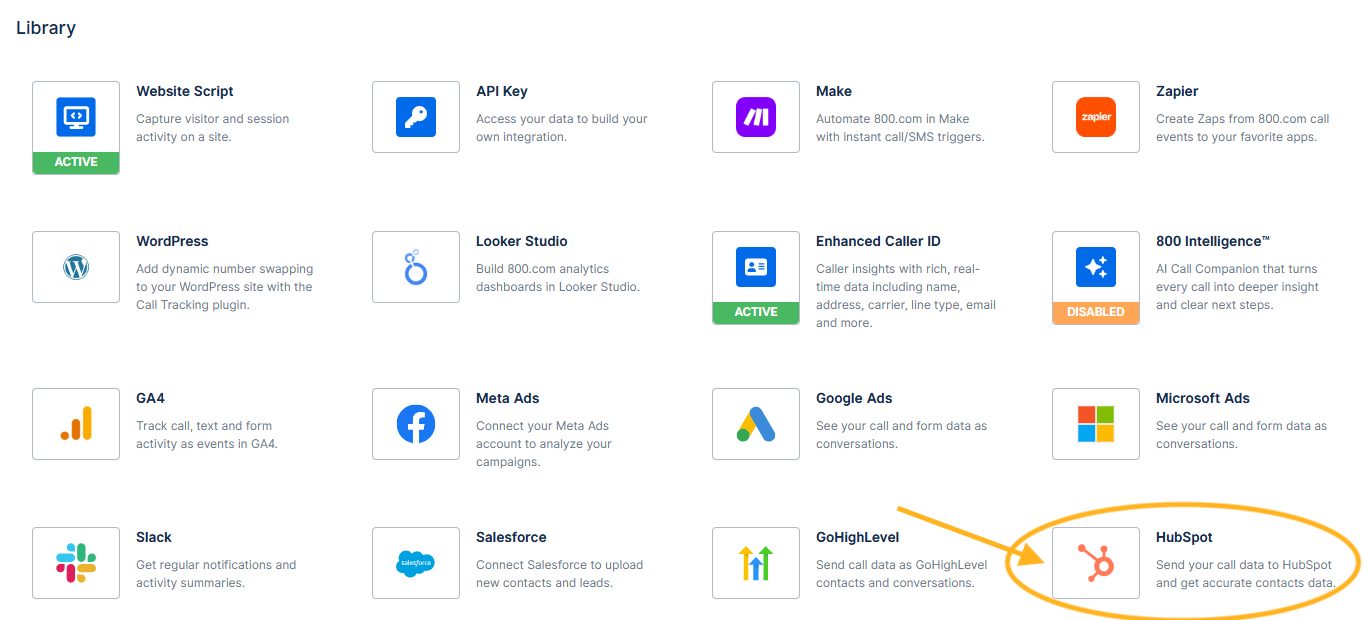
Review the overview page for the HubSpot Integration \> Click **Sign In with HubSpot** to begin the \*\*\*\*OAuth process.
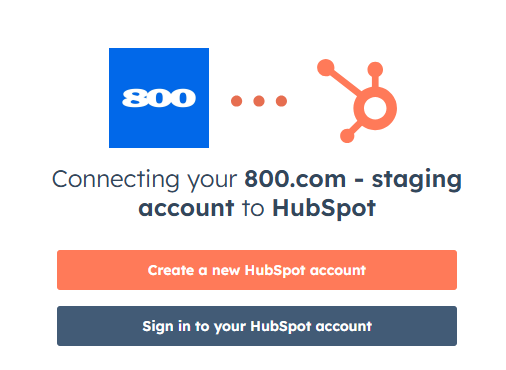
You will be prompted to create a **new HubSpot account** or **sign in to an existing account**.
If you chose to sign in to an existing account using your **HubSpot** **credentials**:
- Email address
- Password
\* You can also choose to sign in using the alternative login options that are available.
Click **Log In** to proceed.
Once logged in, you will be prompted to choose an account to connect to HubSpot and then you will be prompted to confirm access.
Click **Connect App** to continue.
Once connected, you will be taken to the **Integration Setup** page.
## Integration Setup
#### Sync Configuration
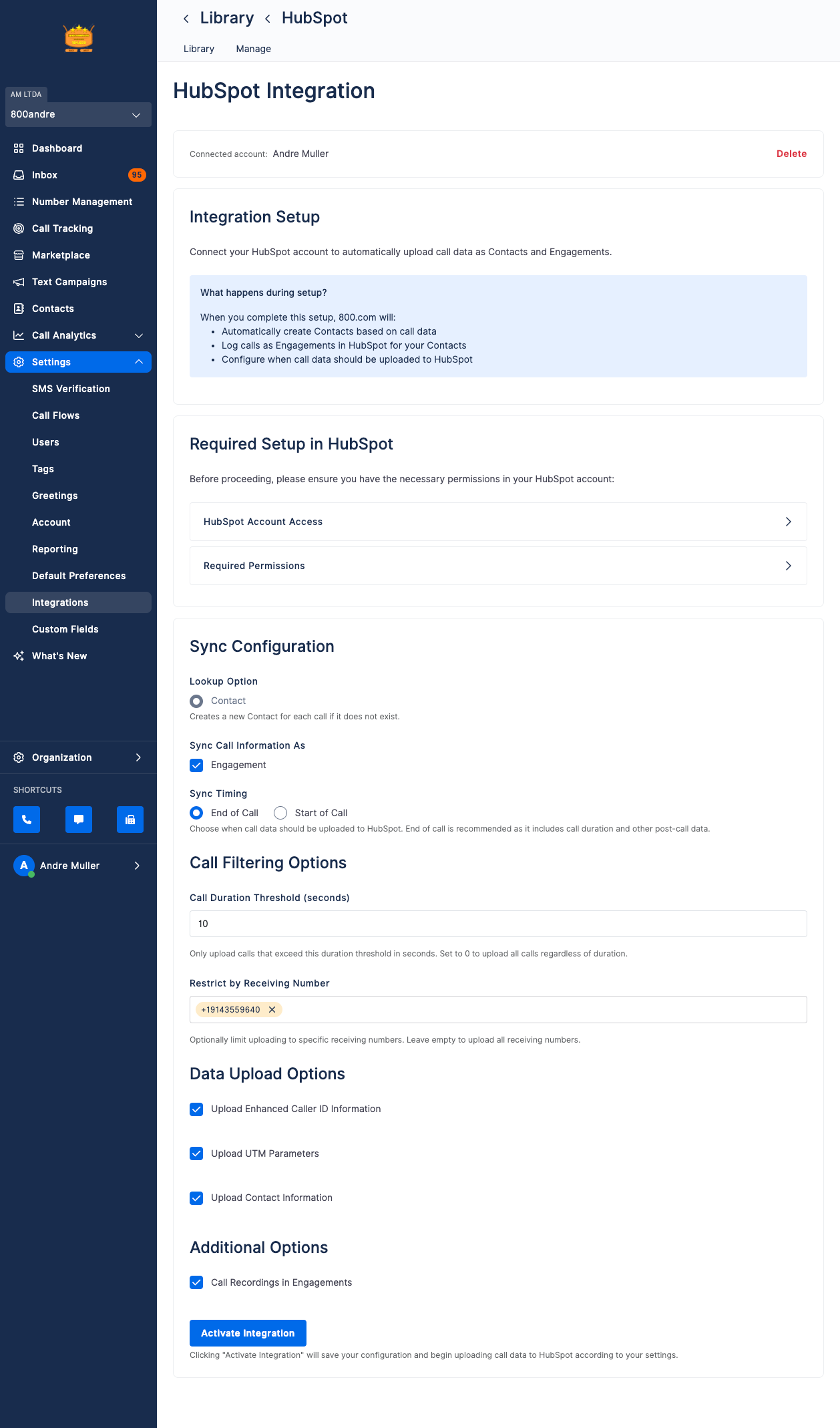
In the **Sync Configuration** section either:
- Select the **Contact** radio button if you want it to create a **new Contact** for each call if the contact does not already exist.
- Select the **Engagement** checkbox to sync the call information as an Engagement.
- Select the desired **Sync Timing**, whether you want the call data to be uploaded to HubSpot at the **End of Call** or **Start of Call**. The End of Call is recommended as it will include the call duration, and other post-call data.
#### Call Filtering
In the **Call Filtering Options** section:
- If you want all calls to be uploaded, set the **Call Duration Threshold (seconds)** field to **0**; otherwise, enter the desired duration threshold in seconds to only upload calls that were longer than the entered threshold.
- You can limit the upload of calls to specific receiving numbers, if desired, by entering the phone numbers in the **Restrict by Receiving Number** field.
#### Data Upload
In the **Data Upload Options** section:
- Select **Upload Enhanced Caller ID** Information if you want to send enhanced caller ID information to HubSpot. Note: You must have Enhanced Caller ID enabled.
- Select **Upload UTM Parameters** if you want UTM parameters to be uploaded.
- Select **Upload Contact Information**, if you want contact information to be uploaded.
#### Additional Options
In the **Additional Options** section:
- Select Call Recordings in Engagements to save call recordings to Engagements.
Once you have set your configuration, click the **Activate Integration** button.
- This will save your configuration settings and start uploading call data to HubSpot, based on your configuration.
Once activated, a summary page of your settings will display.
### Verifying Data Synchronization
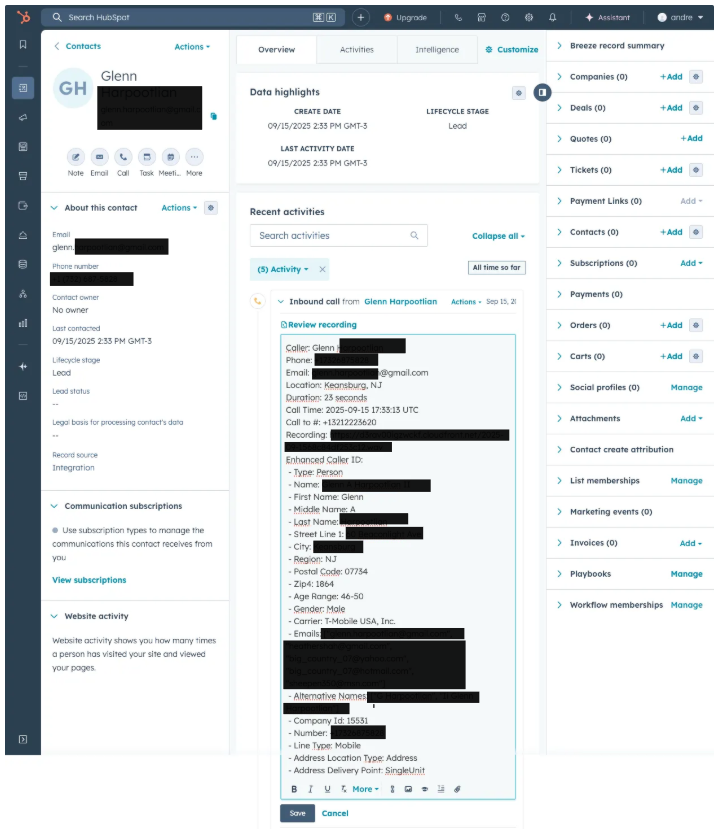
After configuration, navigate to your HubSpot account.
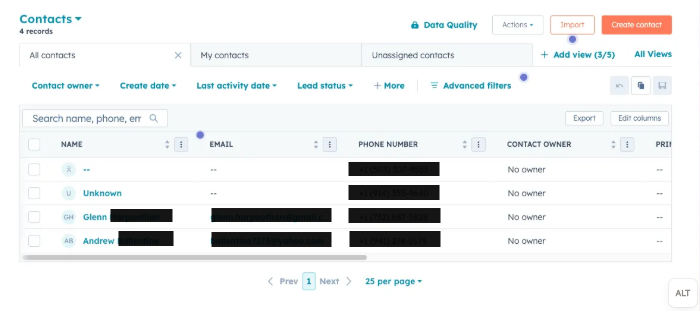
Go to **Contacts** to verify that [800.com](http://800.com) contacts have been synchronized.
You should see contacts with:
- **Names** from your [800.com](http://800.com) system
- **Phone numbers**
- **Email addresses**
- **Contact ownership** information
- **Last activity** timestamps
### Reviewing Contact Details
Click on any synchronized contacts to view detailed information.
The **contact** **record** will include:
- **Contact Information**: Name, email, phone, company details
- **Activity Timeline**: All interactions and engagements
- **Call History**: Detailed call logs from [800.com](http://800.com)
- **Recordings**: Access to call recordings (if enabled).
- **Custom Properties**: Any additional data fields mapped from [800.com](http://800.com)
## Checking the HubSpot Integration Status
In the app, select **Settings \> Integrations**.
- For Organizations, go to **Organization \> Global Settings \> Integrations**.
Locate the **HubSpot Integration** icon in the Integrations Library. You will see one of the following statuses:
- **No banner** – Integration is not enabled.
- **Active** – Integration is currently active.
- **Failed** – There is an issue with the connection. Check your HubSpot access.
## Deleting the HubSpot Integration
In the app, select **Settings \> Integrations**.
- For Organizations, go to **Organization \> Global Settings \> Integrations**.
Click the **Manage** tab.
Locate the **HubSpot** **Integration**, click the **vertical ellipsis \>** select **Delete**. Or click on the **HubSpot** **integration** **icon** to access the configuration page \> click **Deactivate Integration**.
Confirm removal by selecting **Delete** again.
## Need help?
Our support team is available to assist with setup, integrations, or troubleshooting. Reach out to us at **support@800.com**.
- [General & FAQs](https://support.800.com/en-us/hc/general-faqs?hsLang=en-us#main-content)
- [FAQs](https://support.800.com/en-us/hc/general-faqs?hsLang=en-us#faqs)
- [Getting Started](https://support.800.com/en-us/hc/getting-started?hsLang=en-us#main-content)
- [Onboarding Basics](https://support.800.com/en-us/hc/getting-started?hsLang=en-us#onboarding-basics)
- [Dashboard & App](https://support.800.com/en-us/hc/dashboard-app?hsLang=en-us#main-content)
- [Inbox](https://support.800.com/en-us/hc/dashboard-app?hsLang=en-us#inbox)
- [Call Analytics](https://support.800.com/en-us/hc/dashboard-app?hsLang=en-us#call-analytics)
- [Alerts & Monitoring](https://support.800.com/en-us/hc/dashboard-app?hsLang=en-us#alerts-monitoring)
- [Enhanced Caller ID](https://support.800.com/en-us/hc/dashboard-app?hsLang=en-us#enhanced-caller-id)
- [In-App Calling](https://support.800.com/en-us/hc/dashboard-app?hsLang=en-us#in-app-calling)
- [Rewards](https://support.800.com/en-us/hc/dashboard-app?hsLang=en-us#rewards)
- [Number Management](https://support.800.com/en-us/hc/number-management?hsLang=en-us#main-content)
- [Number Management](https://support.800.com/en-us/hc/number-management?hsLang=en-us#number-management)
- [Call blocking](https://support.800.com/en-us/hc/number-management?hsLang=en-us#call-blocking)
- [Number Transfers/Ports](https://support.800.com/en-us/hc/number-management?hsLang=en-us#number-transfers-ports)
- [Marketing](https://support.800.com/en-us/hc/number-management?hsLang=en-us#marketing)
- [800 Intelligence](https://support.800.com/en-us/hc/800-intelligence?hsLang=en-us#main-content)
- [800 Intelligence Guides](https://support.800.com/en-us/hc/800-intelligence?hsLang=en-us#800-intelligence-guides)
- [Call Forwarding](https://support.800.com/en-us/hc/call-forwarding?hsLang=en-us#main-content)
- [Call Routing](https://support.800.com/en-us/hc/call-forwarding?hsLang=en-us#call-routing)
- [Call Tracking](https://support.800.com/en-us/hc/call-tracking?hsLang=en-us#main-content)
- [Dynamic Number Insertion (DNI)](https://support.800.com/en-us/hc/call-tracking?hsLang=en-us#dynamic-number-insertion-dni)
- [Integrations](https://support.800.com/en-us/hc/call-tracking?hsLang=en-us#integrations)
- [Getting Started](https://support.800.com/en-us/hc/call-tracking?hsLang=en-us#getting-started)
- [General](https://support.800.com/en-us/hc/call-tracking?hsLang=en-us#general)
- [Text Messaging](https://support.800.com/en-us/hc/text-messaging?hsLang=en-us#main-content)
- [Texting/SMS Messaging](https://support.800.com/en-us/hc/text-messaging?hsLang=en-us#texting-sms-messaging)
- [Account & Billing](https://support.800.com/en-us/hc/account-billing?hsLang=en-us#main-content)
- [Trial Period](https://support.800.com/en-us/hc/account-billing?hsLang=en-us#trial-period)
- [Plans & Billing](https://support.800.com/en-us/hc/account-billing?hsLang=en-us#plans-billing)
- [Security](https://support.800.com/en-us/hc/account-billing?hsLang=en-us#security)
- [Companies](https://support.800.com/en-us/hc/account-billing?hsLang=en-us#companies)
- [Users](https://support.800.com/en-us/hc/account-billing?hsLang=en-us#users)
- [Marketing Tools](https://support.800.com/en-us/hc/marketing-tools?hsLang=en-us#main-content)
- [Marketing Ideas](https://support.800.com/en-us/hc/marketing-tools?hsLang=en-us#marketing-ideas)
- [API](https://support.800.com/en-us/hc/api?hsLang=en-us#main-content)
- [API Docs](https://support.800.com/en-us/hc/api?hsLang=en-us#api-docs)
- [800 AI Agents](https://support.800.com/en-us/hc/800-ai-agents?hsLang=en-us#main-content)
- [800 AI Agents](https://support.800.com/en-us/hc/800-ai-agents?hsLang=en-us#800-ai-agents)
- [Integrations](https://support.800.com/en-us/hc/800-ai-agents?hsLang=en-us#integrations)
- [Knowledge Base](https://support.800.com/en-us/hc/800-ai-agents?hsLang=en-us#knowledge-base)
- [800 AI Agent Configuration](https://support.800.com/en-us/hc/800-ai-agents?hsLang=en-us#800-ai-agent-configuration)
[Contact our support team](https://support.800.com/en-us/hc/articles/34511169155341-how-to-contact-support?hsLang=en-us)
Copyright © 2026, 800.com